Invoice Setup Options
Invoice Setup Options
Here is a list of various options and settings you can use to customize the appearance of your invoices and the actions related to invoicing in CATS.
Contact New Data Systems before changing any of the settings in this area. Settings can affect how your system behaves and change fundamental system information.
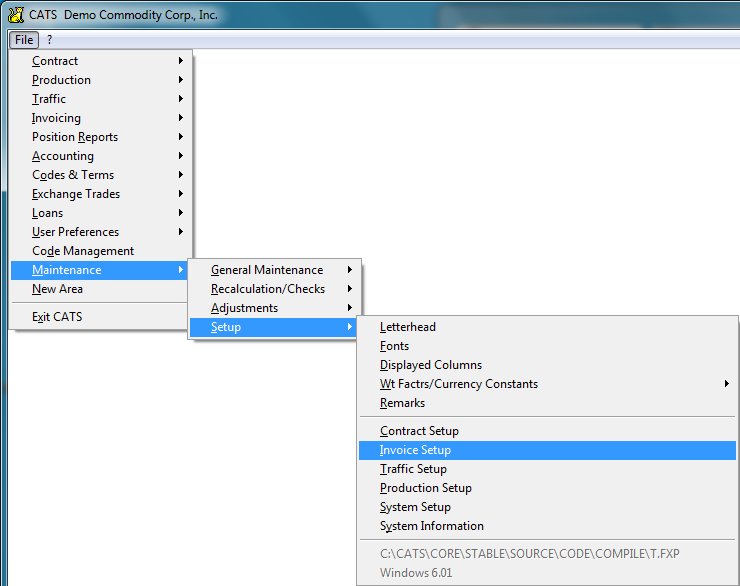
To access the Invoice Setup area, from the File menu pick Maintenance > Setup > Invoice Setup.
\
Output Settings
These settings affect the look of the invoice.
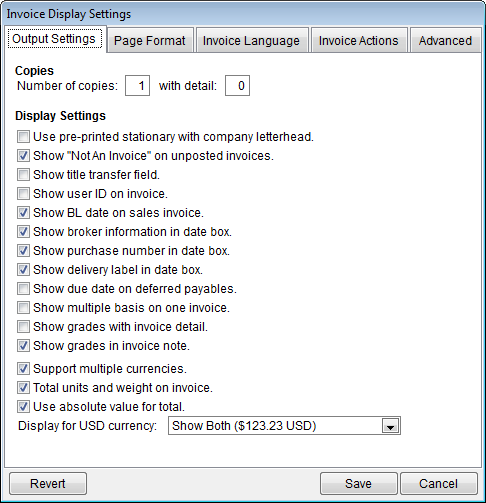
Copies
Number of copies - Enter the default number of copies you want CATS
to print. You can change this every time you print an invoice.
With detail - Enter the number of detailed copies (shows broker and
provisional invoice information) you want CATS to default to when
printing. You can change this every time you print an invoice.\
Display Settings
Use pre-printed stationary with company letterhead-
Show not an invoice on unposted invoices -
Show title transfer field -
Show user ID on invoice -
Show BL date on sales invoice -
Show broker information in date box -
Show purchase number on date box -
Show delivery label in date box -
Show due date on deferred payables -
Show multiple basis on one invoice - For each invoice item, show the
weight and price basis if they are different from the invoice overall
basis. The alternative is to force the basis on all items to match the
overall invoice basis.
Show grades with invoice detail -
Show grades in invoice note -
Support multiple currencies - Allow usage of more than one currency
on an invoice.
Total units and weight on invoice - Show a total line on the invoice
with total units and weight for all items.
Use absolute value for total - Always display the printed total on
the invoice as a positive number.
Display for USD currency - Enter a character string to display next
to amounts for USD currency amounts. Example: Entering USD here
will make CATS display USD 500.\
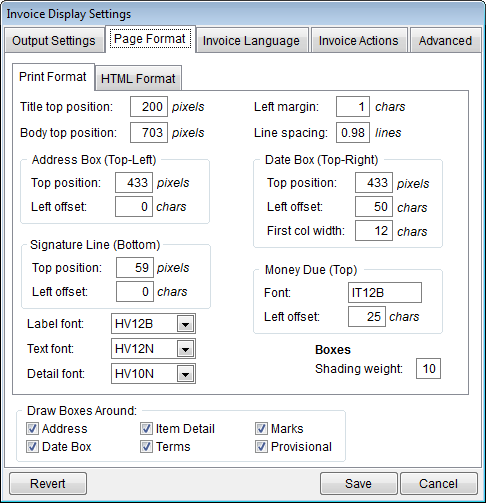
Page Format Tab Settings
These settings affect the look of the page.
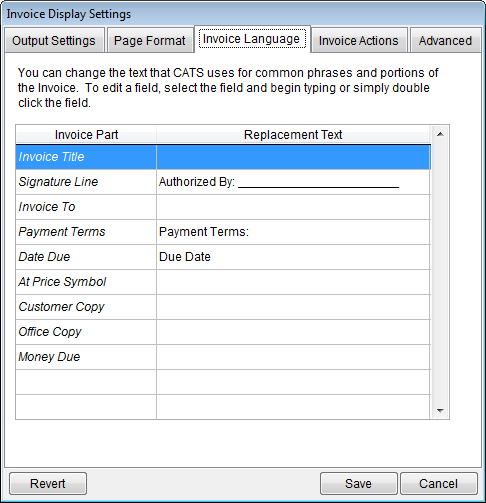
Invoice Language
Changes the text CATS uses for common phrases.
Invoice Actions
These settings affect the look of the invoice.
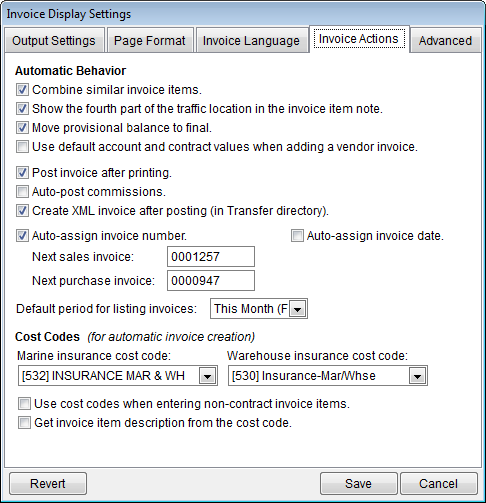
Automatic Behavior
Combine similar invoice items -
Show the fourth part of the traffic location in the invoice item
note -
Move provisional balance to final -
Use default account and contract values when adding a vendor invoice
-
Post invoice after printing-
Auto post commissions -
Create XML invoice after posting (in Transfer directory) -
Auto assign invoice number -
Auto assign invoice date -
Next Sales invoice -
Next Purchase invoice -
Default period for listing invoices -\
Cost Codes
Marine insurance cost code -
Warehouse insurance cost code -
Use cost codes when entering non-contract invoice items -
Get invoice item description from the cost code -\
Advanced Tab
Advanced options
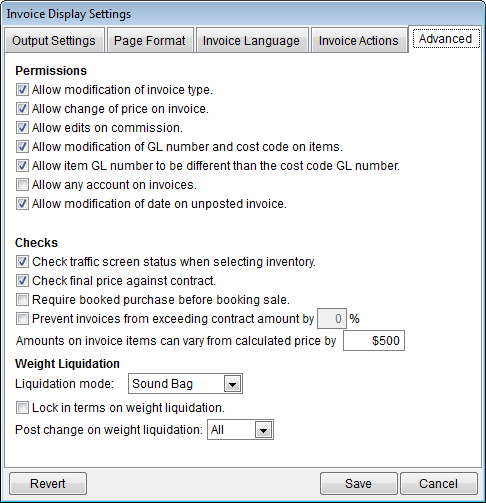
Permissions
Allow modification of invoice type -
Allow change of price of invoice -
Allow edits on commissions -
Allow modification of GL number and cost code on items -
Allow item GL number to be different than the cost code GL number -
Allow any account on invoices -
Allow modification of date on unposted invoices -\
Checks
Check traffic screen status when selecting inventory -
Check final price against contract -
Require booked purchase before booking sale -
Prevent invoices from exceeding contract amount by 0% -
Amounts on invoice items can vary from calculated price by $500 -\
Weight Liquidation
Liquidation mode -
Lock in terms on weight liquidation -
Post change on weight liquidation -\