Trucking Charges on Delivery Orders
Trucking Charges on Delivery Orders
CATS allows you to add a trucking/freight charge to a delivery order (a DO or an IDO). This lets you enter details about the shipment and also allows you to bill the freight to a customer.
Although we refer to these items as trucking charges, they can also be used for other shipments such as drayage or freight.
Setting up Trucking Charges
First, you will need to turn on the setting to attach trucking charges to a DO.\
Go to File > Maintenance > Setup > Traffic Setup.\
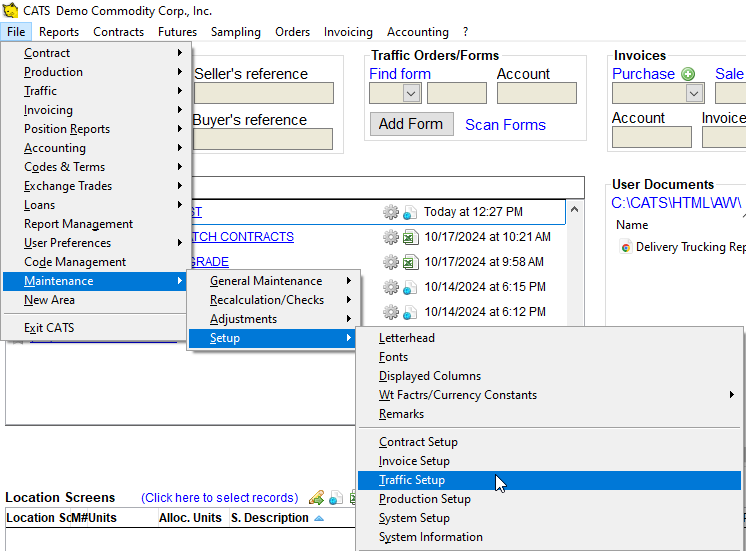 Maintenance > Setup > Traffic Setup to access the setting." />
Select the Traffic Orders tab.
Click on the box next to Enable trucking delivery tracking from the
DO.\
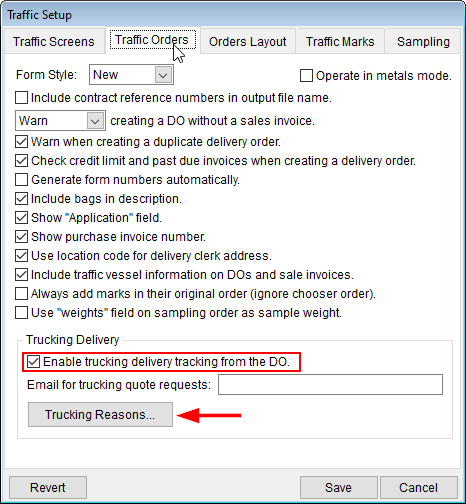
Then, set up the Trucking Reasons.
Entering Reasons for Billing
The assumption on DOs is that trucking is billed to the customer. If you are NOT going to do this, you must choose a reason on each DO to bill to your own account.\
Click on the Trucking Reasons… button. A new box will pop up that prompts you to enter reasons for billing to your account instead of the client/customer account.\
Enter each reason using your keyboard. Each new line will be a reason. Select the OK button to continue.\
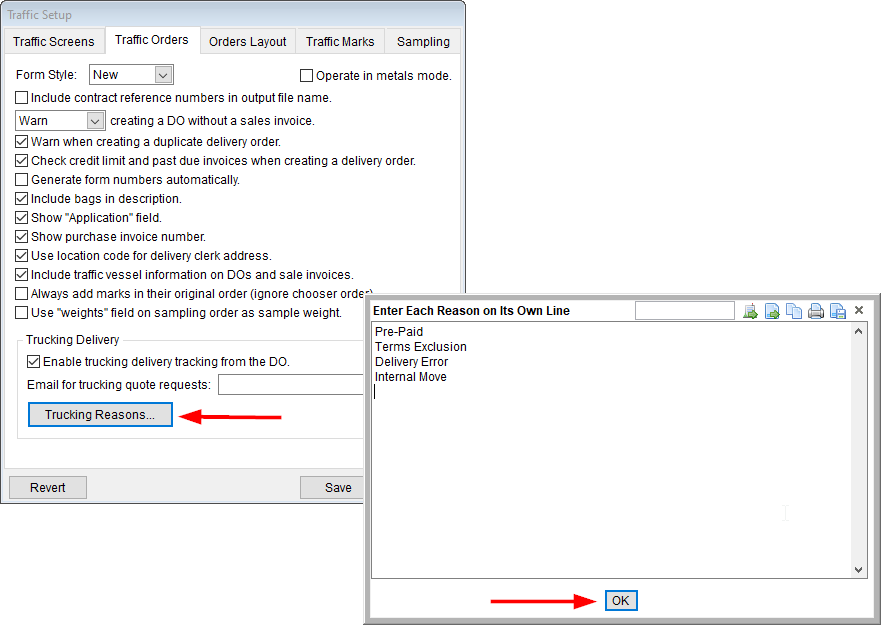
Pick Save on the Traffic Setup screen to proceed.\
Adding Trucking Charges to a DO
Navigate to the DO or IDO that needs a trucking charge. Select Truck from the menu to enter a trucking entry.
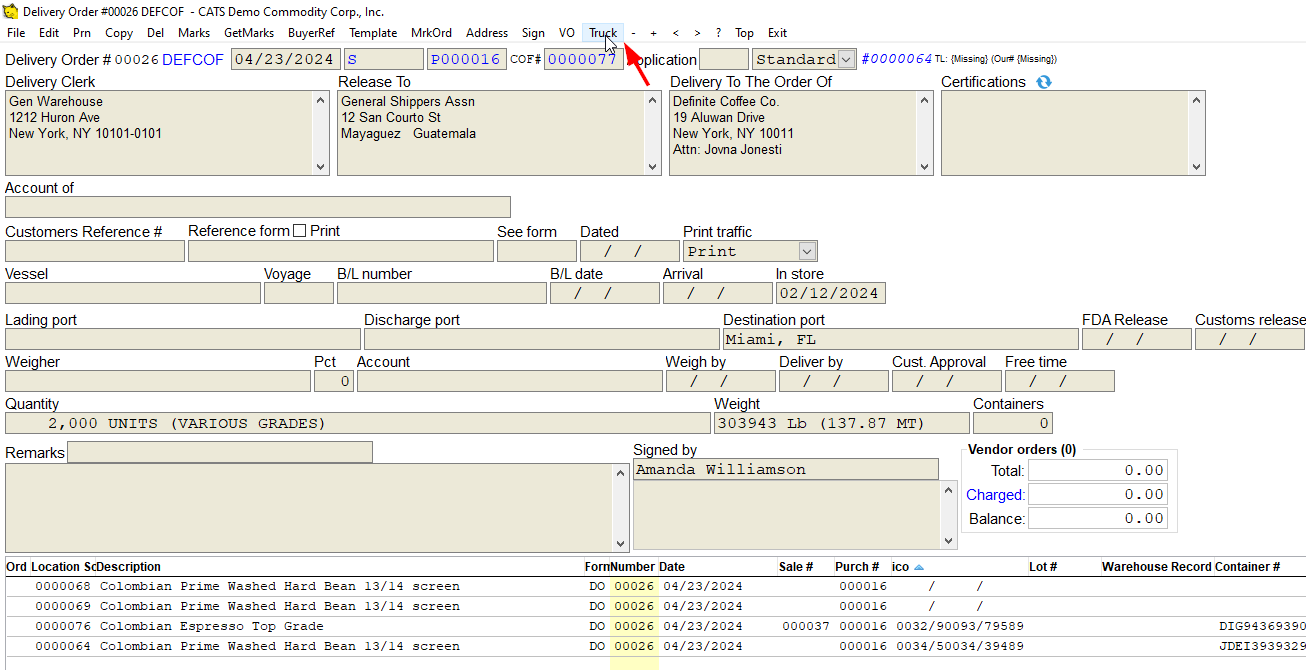
A new screen will pop up that prompts you to enter details for this trucking shipment.
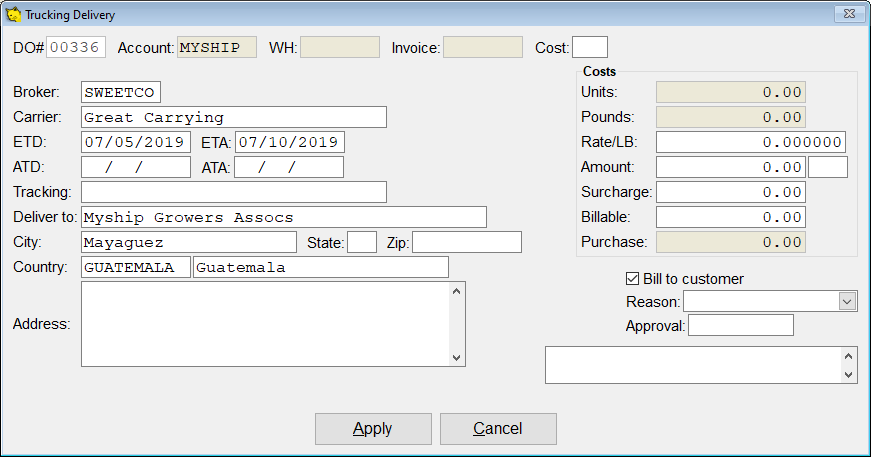
Entering Details for a Trucking Charge
Fill in the correct Cost code in the top right on this screen. You MUST fill in the following fields:
- Broker: An account code linked to the trucking broker or carrier.
- Carrier: A freeform field to list the carrier name.
- Cost Code: Cost code, linked to a G/L code set up elsewhere in the system.
- Amount: Amount of trucking charge.
Optional:
- Surcharge:
- Tracking: A tracking number for this shipment.
- Billable: Amount + Surcharge that is billable to the customer (see below).\
Choose the Billing Type
For a shipment that will be billed to a customer, make sure the Bill
to customer box is checked.
Also, enter an amount in the Amount and Billable fields as
well.\
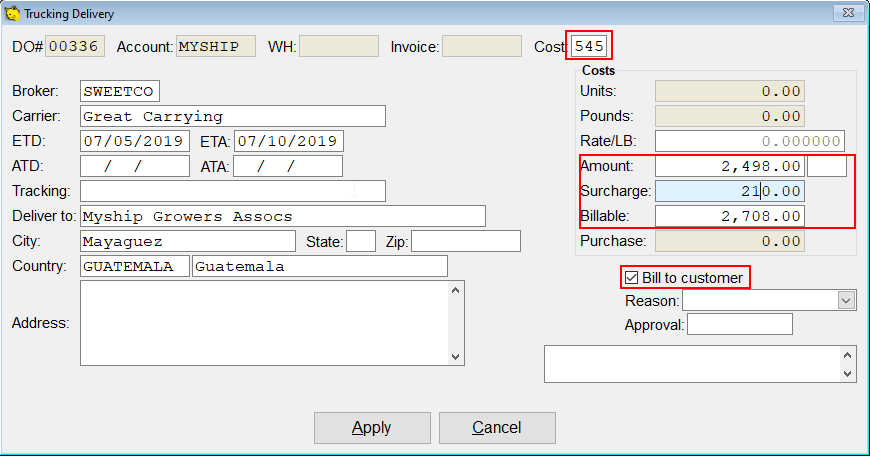
Then, select Save to continue.
For a shipment that you will pay, un-check the Bill to customer box, then select a reason why you are going to pay for the shipment yourself from the list.
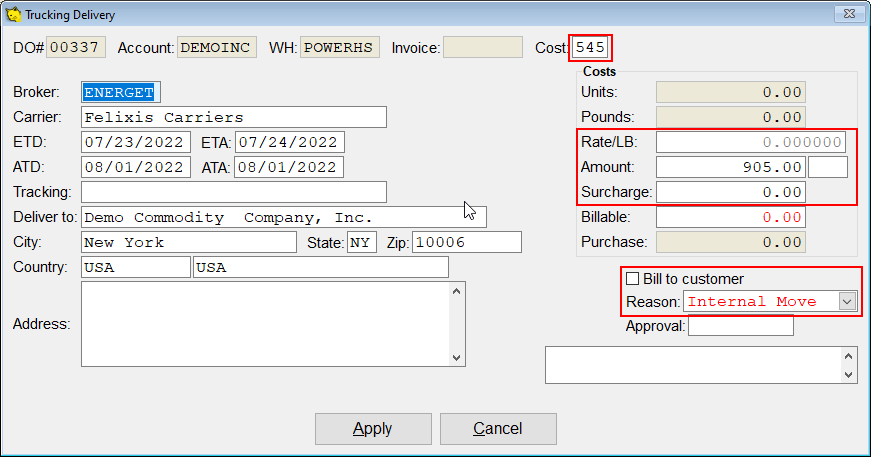
Pick Save to exit back to the DO.
Once you have finished with the trucking charge, you can leave the DO and work in CATS.
Adding an Invoice Item for a Trucking Charge
When you create a sale invoice that references this sale contract, CATS will add a trucking charge to the item for the appropriate amount of units or weight based on the location screen you pick.
Reviewing Trucking Entries
Under Traffic > Trucking, you can see a list of the trucking charges that have been entered into the system.\
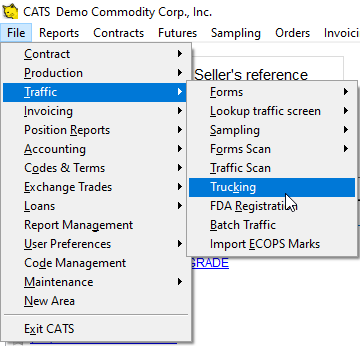
From here you can print reports, download a list of entries, or filter and search this list.\
 Trucking." />
By clicking on the menu item for Tools > Show delivered, you can see a list of entries that have been completed.\
 Show Delivered to see closed shipments." />
Printing a Trucking Report
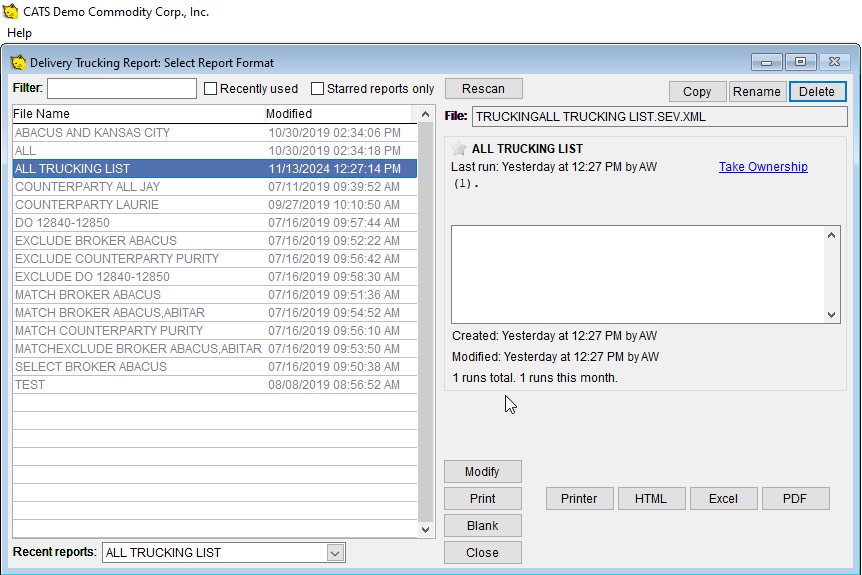
Select Report from the scan menu to see a list of reports that you can print or create a new report.
Use the filters, columns, and orders to set up the report, then print it to review trucking entries.
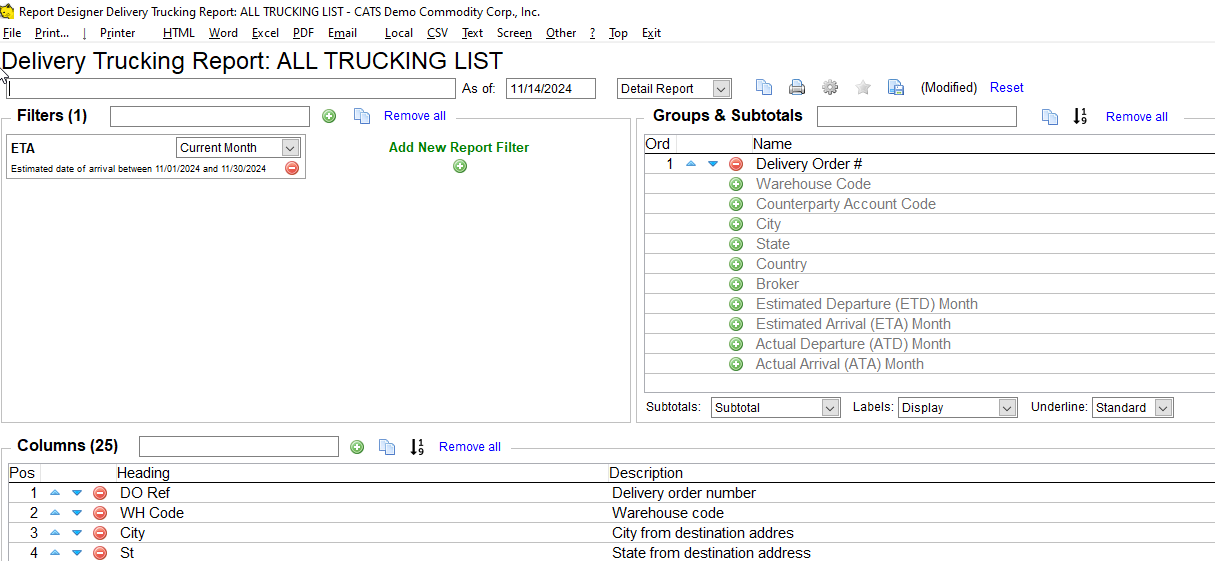
Then print the report.