Traffic Scan
Traffic Scan
This is a step-by-step guide to using the traffic scan option in CATS.\
Quick Guide Steps
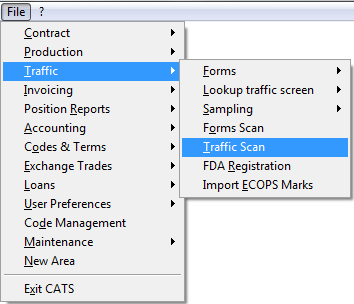
- From the main menu, go to Traffic > Traffic Scan.
- Choose your menu option: Edit, Order, Search, Filter or Tools.
- Edit takes you to the location screen. From here, you can perform normal functions on the location screen.
- Order from the top menu bar allows you to order the traffic scan page.
- Search on the top menu bar will find a specific traffic selection. It will find the first record in the list that matches the search criteria.
- Use Filter to filters through the scans.
- Use Tools option to show marks, exchange lots, or change
selections.
- To modify a scan from traffic scan, go to the Question Mark (?) > Modify Scan. - Pick Exit to return to main menu.\
Scanning Traffic Screens
Use traffic scan to see everything all at once instead of individual scans. Go to Traffic > Traffic Scan to scan traffic screens.\
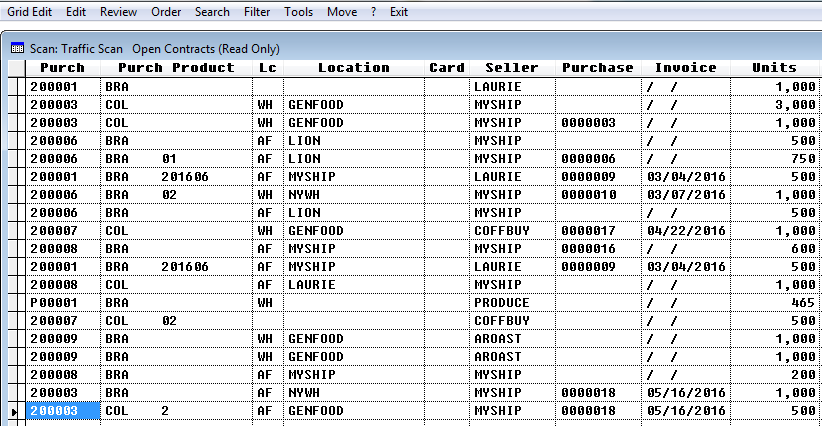
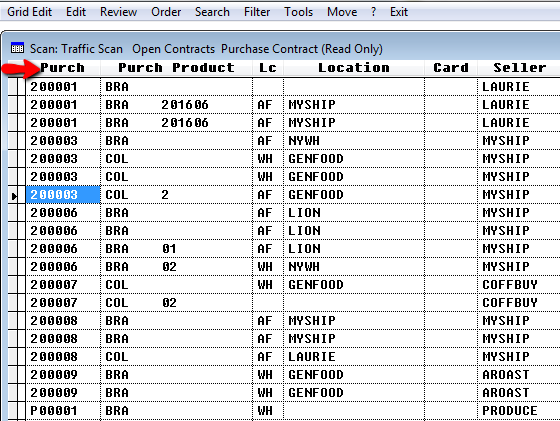
The scan of open contracts will show.\
Menu Options
Menu options for the traffic scan are:
- Edit\
- Order\
- Search\
- Filter
* Tools (marks, exchange lots, or change field selections)\
Edit
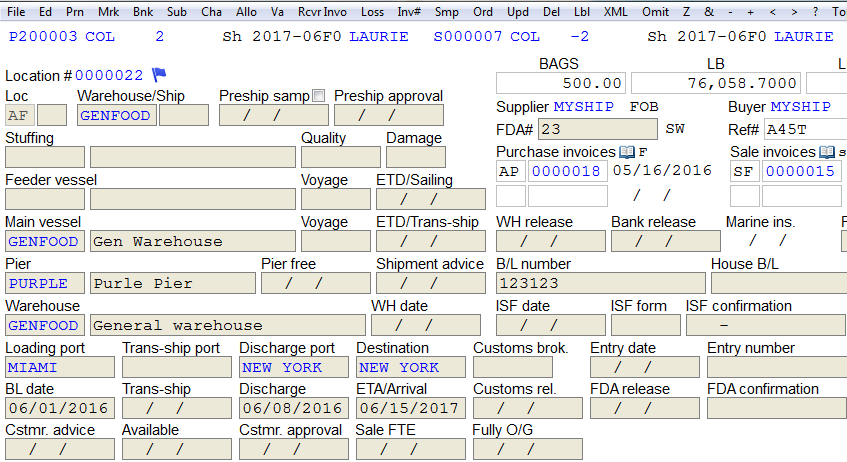
Edit from the top menu bar takes you to the location screen.\

From here, you can perform normal functions on the location screen.
Order
Order from the top menu bar allows you to order the traffic scan page.\
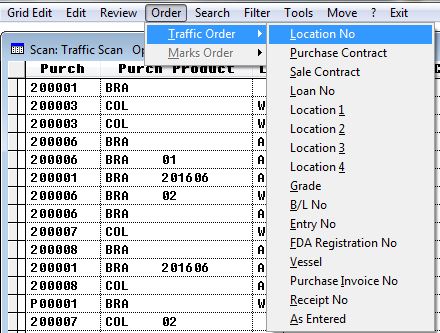
You can order the page by any of the following:
Location No
Purchase Contract
Sale Contract
Loan No
Location 1
Location 2
Location 3
Location 4
Grade
B/L No
Entry No
FDA Registration No
Vessel
Purchase Invoice No
Receipt No
As Entered\
For example, choose Order > Traffic Order > Purchase contract. Enter the purchase contract number and press Apply. It will list the traffic scan by purchase number.
Search
Search on the top menu bar will find a specific traffic selection.
It will find the first record in the list that matches the search
criteria. You can search by any of the following:
Location No
Purchase Contract
Sale Contract
Loan No
Location 1
Location 2
Location 3
Location 4
Grade
B/L No
Entry No
FDA Registration No
Vessel
Purchase Invoice No
Receipt No\
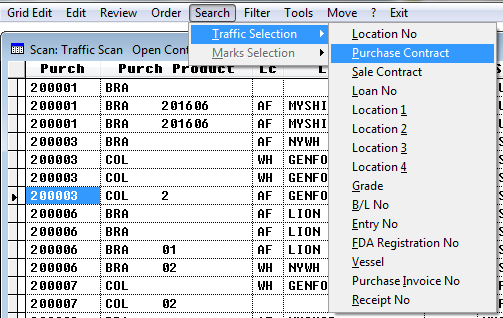
For example, choose Search > Traffic selection > Purchase contract.
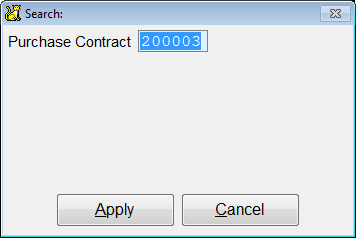
Enter the purchase contract number and press Apply.
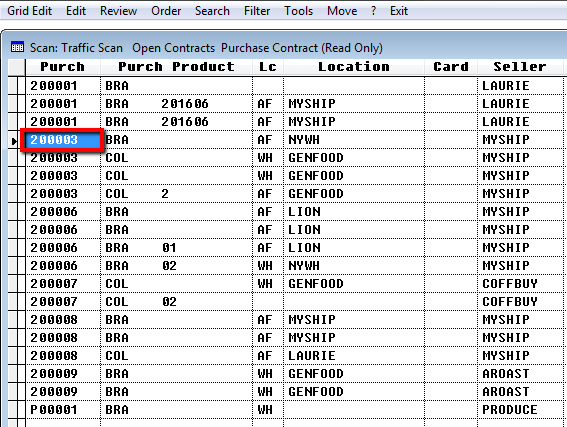
The purchase contract will now be highlighted on the page.\
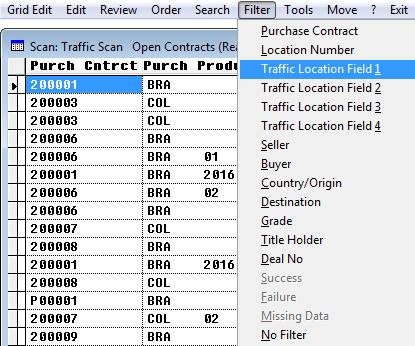
Filter
Use Filter to filters through the scans.You can filter by:
Purchase Contract
Location Number
Traffic Location Field 1
Traffic Location Field 2
Traffic Location Field 3
Traffic Location Field 4
Seller
Buyer
Country/Origin
Destination
Grade
Title Holder
Deal No
No Filter
For example, choose Filter > Traffic Location Field 1.
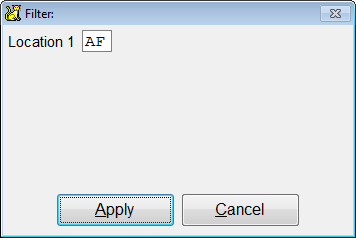
Enter the traffic location. Press Apply.
The scan will be modified to include only the filter you choose.
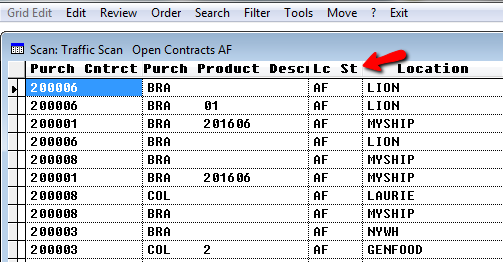
The No Filter scan will show you everything as it was before you added a filter.\
Tools
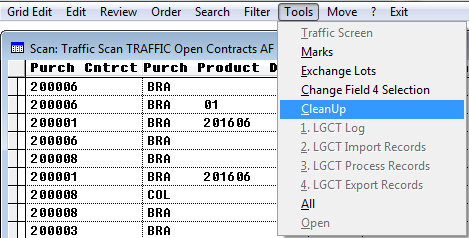
Use Tools option to show marks, exchange lots, or change selections.\
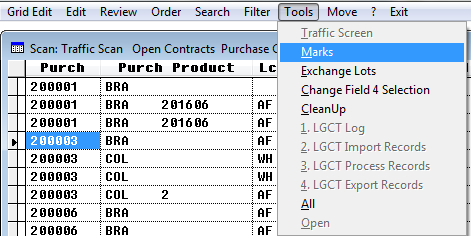
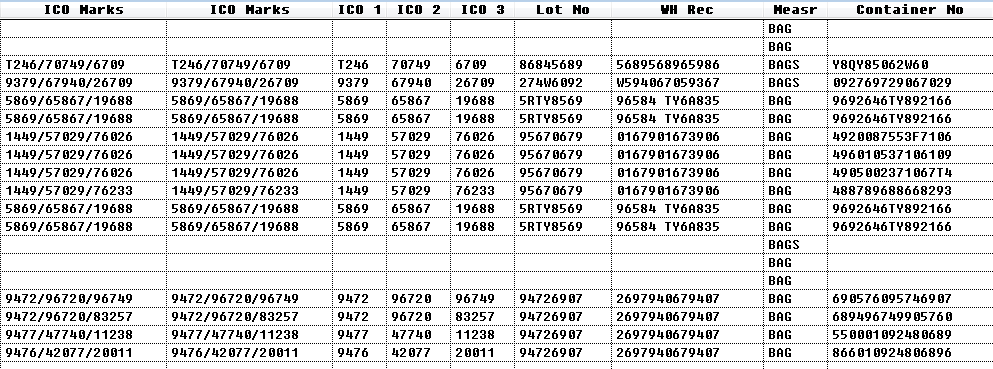
Go to Tools > Marks to show all marks for these traffic screen.\
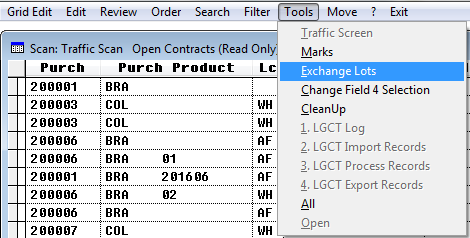
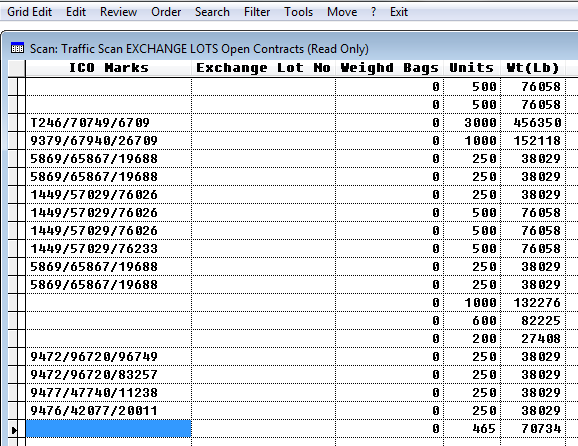
Go to Tools > Exchange Lots to show exchange lots with specific columns.\
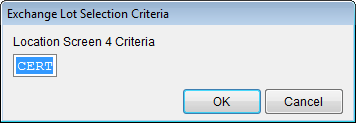
Go to Tools > Change field 4 selections to change the selection in field 4.\
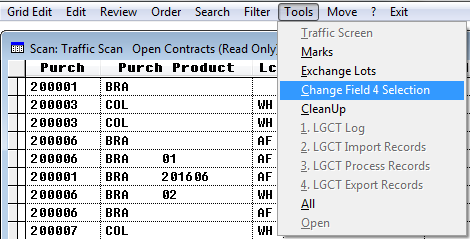
Enter the criteria for field 4 and press OK.\
Clean Up
Contact New Data Systems before using the Clean Up command. Clean Up will delete records.
Clean up removes orphan traffic screens and marks from the traffic scan. If CATS finds traffic screens with contract numbers that do not exist, it will delete them. Same goes for traffic marks.
Press Exit to return to the main menu.\
Modify Scan
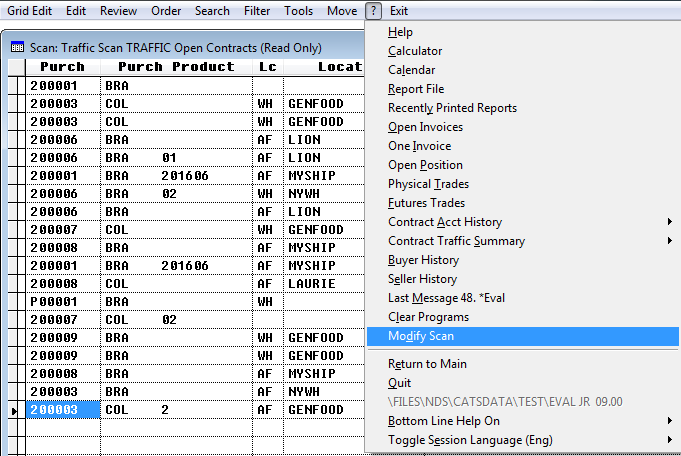
To modify a scan from traffic scan, go to Question Mark (?) > Modify Scan.
To see more about changing columns and modify a scan, see the wiki page How do I change columns in a scan.