Creating and Modifying Traffic Documents
Creating and Modifying Traffic Documents
Traffic documents, also called traffic orders or forms, can be generated by and printed from CATS.
List of Traffic Document Types
The following is a list of traffic document types, any special information about these types, and their usage in CATS.
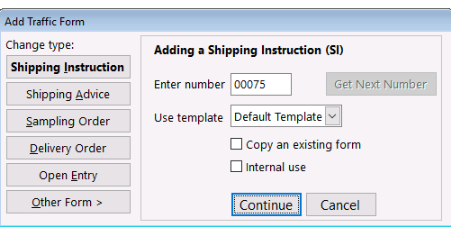
- DO - Delivery Order - Delivery orders are sent to customers, warehouses, or shipping companies to allow transfer of material.
- SO - Sampling Order - Sampling orders are used to request samples from sellers on behalf of your company or a customer.
- SH - Shipping Advice - Shipping Advices allow you to notify a counterparty (usually a warehouse or customer) of an incoming shipment.
- SI - Shipping Instruction - Shipping Instructions are notes sent to a shipping company on what material is being shipped and any special needs for this shipment.
- IR - Importer of Record -
- NN - Non-Negotiable Receipt - A Non-Negotiable Receipt is used to provide proof of ownership of material. A Warehouse Receipt is considered negotiable unless it is marked non-negotiable.
- PC - Pre-Claim Notification - Notification sent prior to making a claim to insurance for material.
- SB - Surrender of B/L and Frt - This document is used to request the surrender of bill of lading documents and the freight cargo.
- BR - Bank Release - Send a Bank Release to show that you (or a counterparty) are allowed to pick up material.
- VS - Vessel Sheet -
- PE - Proforma Entry -
- FE - Final Entry -
- TE - T&E Transportation & Export - A T&E form is sent to customs to
- EW - Request for Electronic Whse Receipt -
- SD - Shipment Declaration -
- FV - Shipping Advice Feeder Vessel - A Shipping Advice created for the feeder vessel instead of the main vessel.
- RO - Reconditioning Order -
- PO - Production Order - A document sent to the production (also called tolling or processing) house to inform them to process specific material.
- WR - Warehouse Release - Send a Warehouse Release to inform a warehouse that material may be released to X counterparty on Y date.
Once you have created a contract and a location screen, you can create any form at any time. However, you may wish to wait until you have information needed on the form filled in on the location screen.
The location screen will show the traffic documents.
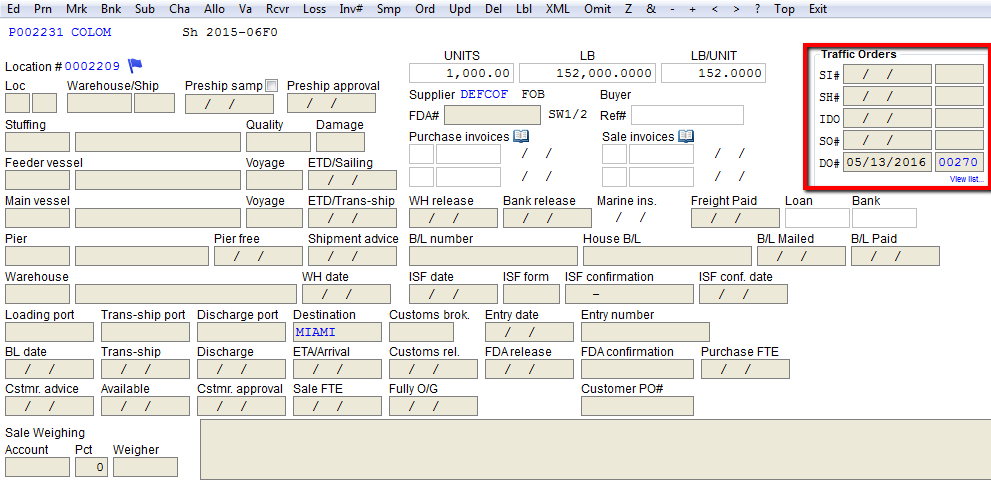
Adding a Form from a Location Screen
To add a form, first navigate to a location screen using any method. See wiki locscreenoverview for help.\
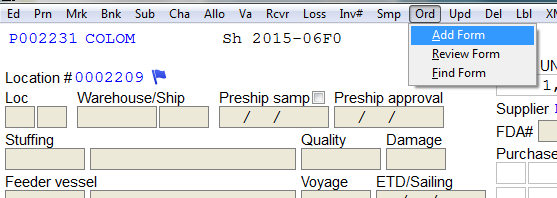
Once location screen is picked, proceed to Ord > Add form from the menu bar.\
Select a type of traffic form.\
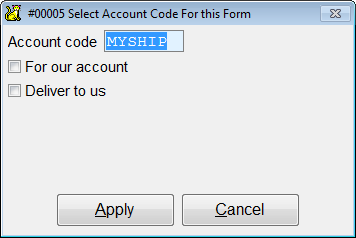
Select account code for this form.\
Location screen alert may come up. Say Yes.\
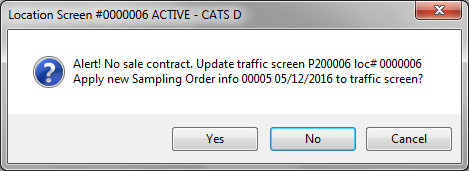
Adding a Form from the Main Menu
Another way to add a form is from the main menu. Go to Traffic > Forms > Add.\
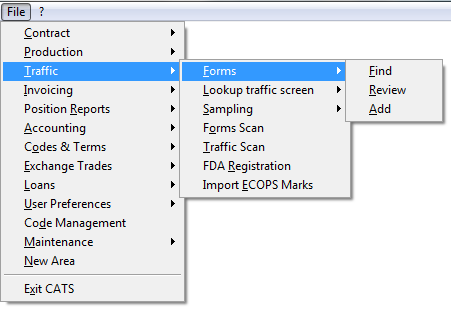
Select a type of traffic form. Press Save.\
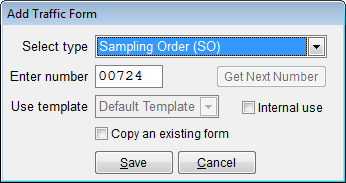
Select account code for this form. Press Apply to continue.\
Menu Options on a traffic form
Once the traffic form is created, there are menu options.
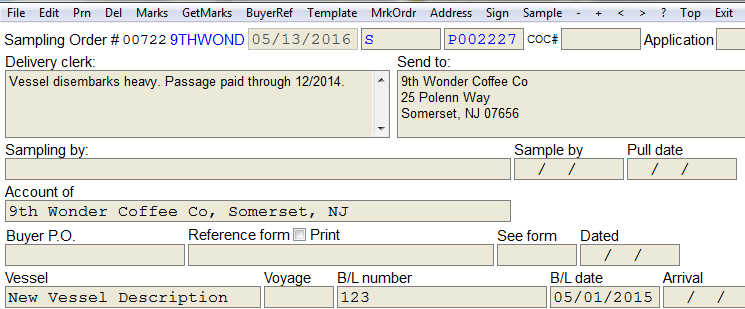
Edit- Allows user to make changes on the traffic form.
Prn- See below Printing Forms.
Del- Delete exsisting marks.
Mark- See below Adding and Editing Marks.
Get Marks- See below section Get Marks.
BuyerRef-
Template- Create a new template or modify an existing one.
Mrk Order- Order marks by certain criteria.
Address- Allows user to edit delivery clerk, release to, deliver to,
account of.
Sign- Attach a digital signature to a document.
Sample- This option is only available on a sampling order. Lets user
add sample(s) to the order.\
Editing and Adding Marks
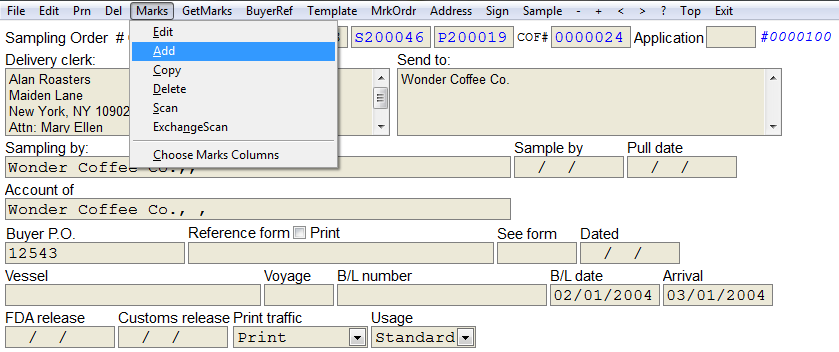
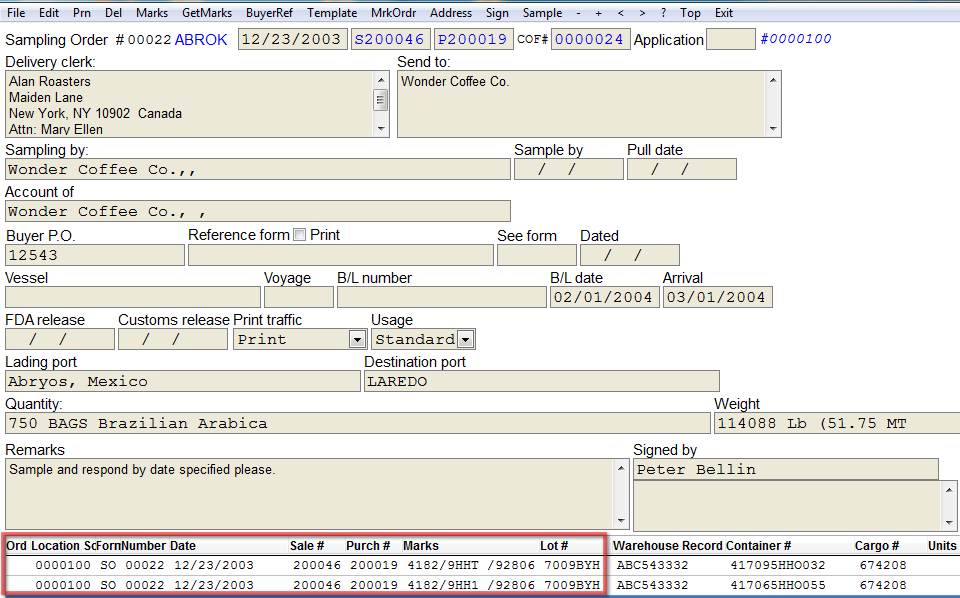
After you create an order form, you can add, edit, copy, delete or scan marks. If you choose Marks > Add from top menu bar, you will manually enter information pertinent to this order.\
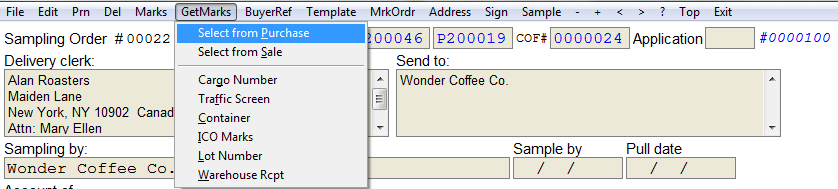
Instead of entering information manual, you can choose to select marks from a purchase order. Go to Get Marks > Select from Purchase.\
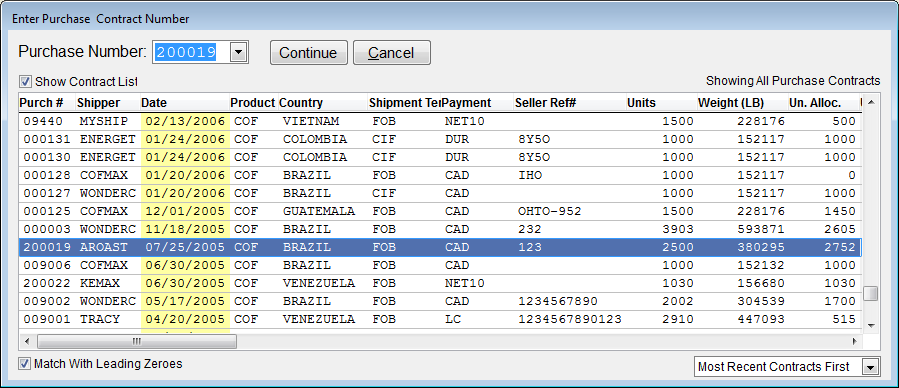
Choose the purchase order. Press Continue.
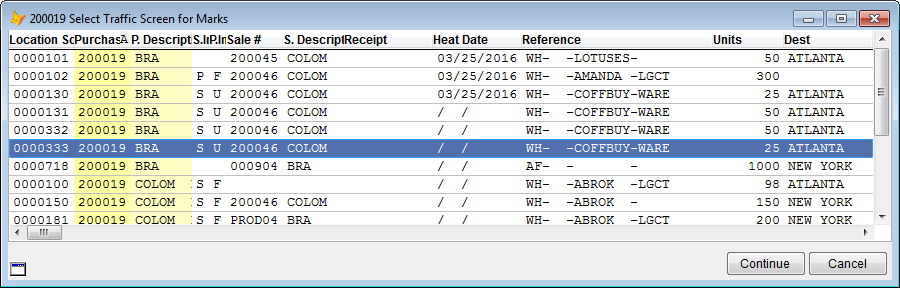
Select the traffic screen for marks. Press Continue.
The marks will be on the bottom of the traffic form.\
Printing Forms
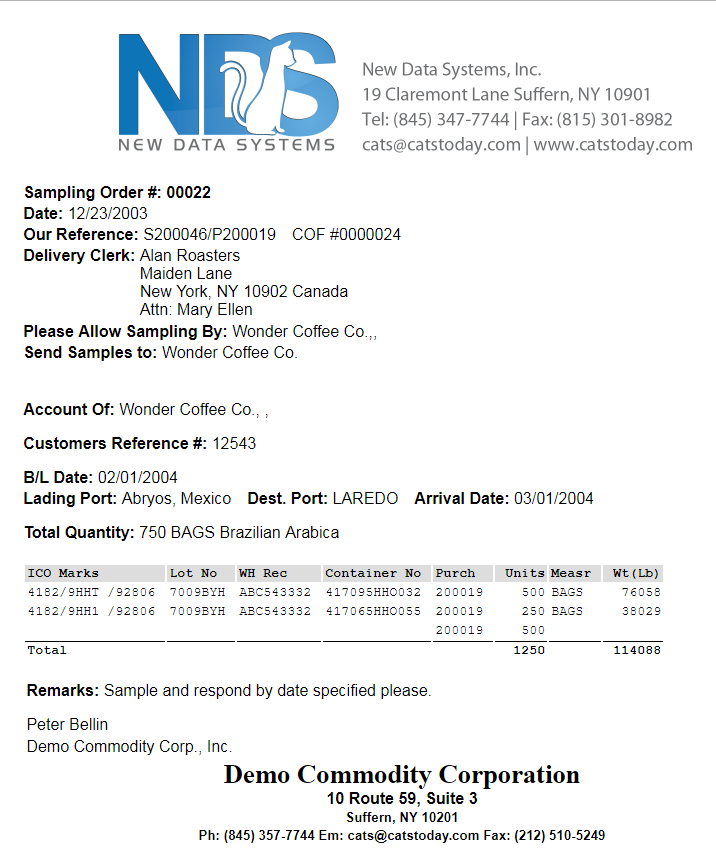
Go to Print.

Choose print method you want.

Below is a Sampling Order (SO).\
Changing Printed Columns
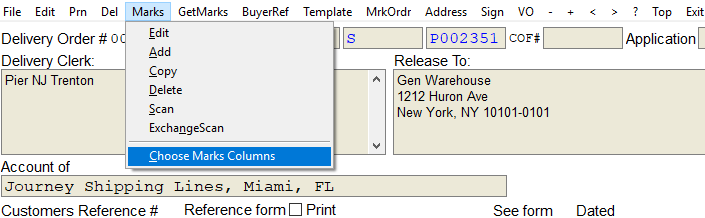
Column settings control which columns appear and in what order, for all scans in CATS. To change default columns that are printed for any type of form, see the wiki on displayed columns. To change the Marks Column Templates on a single traffic form, go to Marks < Choose Marks Column.
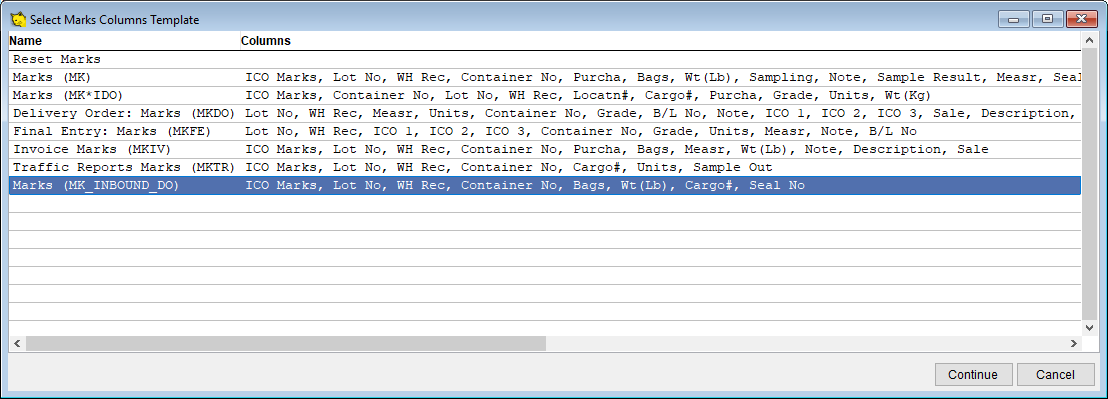
These are templates that exist only on this traffic form. Choose the template and press Continue.
Continue to print as usual.