Creating and Working with a Sampling Order
Creating and Working with a Sampling Order
This section has information on creating a Sampling Order (also called an SO) from a sample entry and on adding samples to the order.
If you are not using the sampling system in CATS, but want to create a Sampling Order anyway, you can add an SO as you would any other traffic form. [[cats:procedures:traffic:orders|See the wiki on working with traffic documents for more information]].
Creating a Sampling Order from a Sample
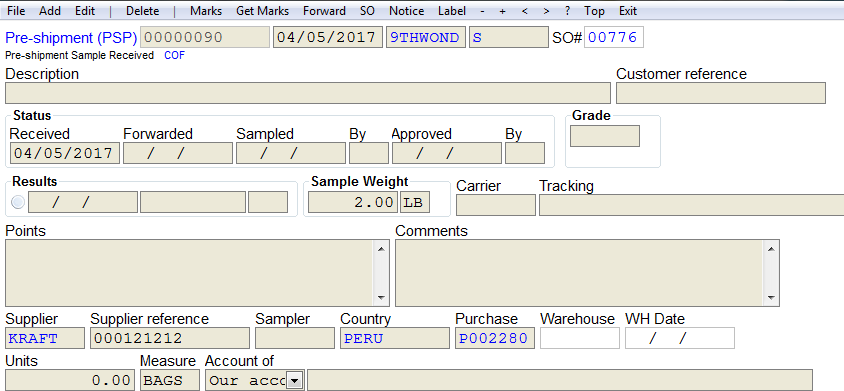
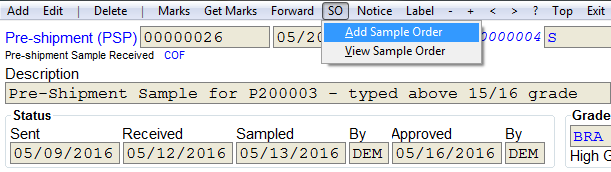
To create a sampling order, open the sample that you want to create an order. Once the sample screen is open go to SO on the top menu bar and choose Add Sample Order.\
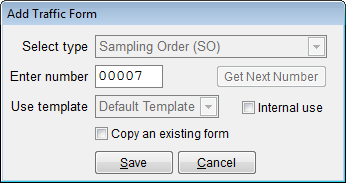
Enter an order number and press Save.\
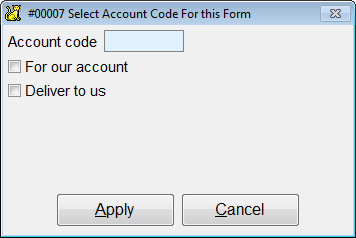
Enter an account code and press Apply.\
The sampling order is complete. Go to Prn on top menu bar to choose a print option.\
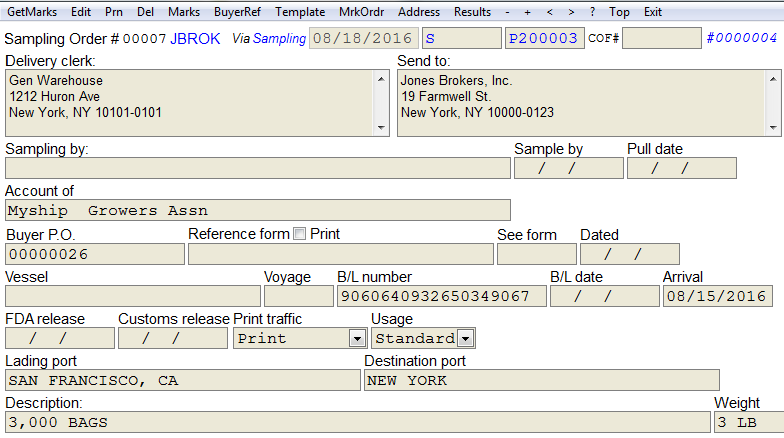
Adding a Sample to the Sampling Order
Once a traffic form (SO) is created, you can add a sample to the order. Go to Sample on the top menu bar.
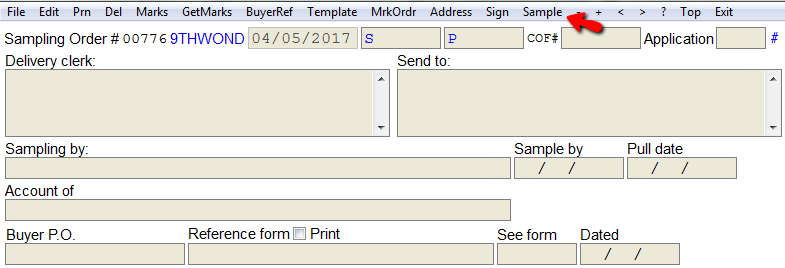
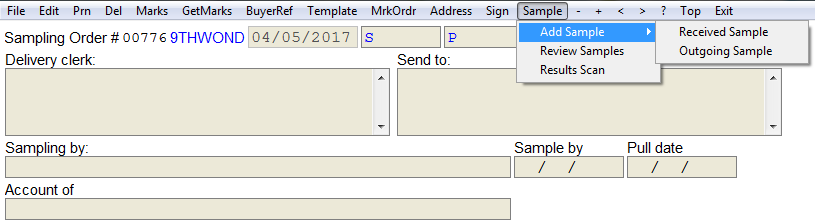
Choose to add a received or outgoing sample.
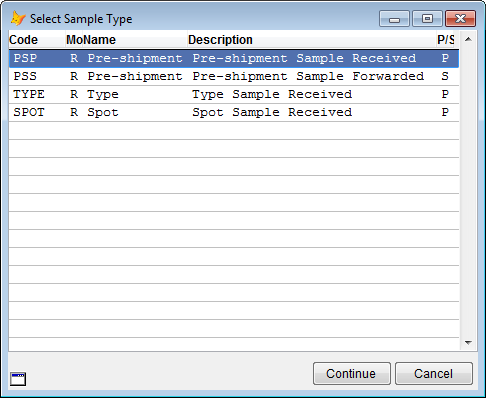
Select the sample type and then choose Continue to proceed. Click here for more information on sample types and how to set them up in CATS.\
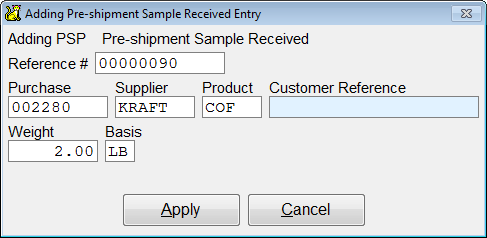
Next, add the details to the sample entry. Press Apply to continue.
The sample has been created. Press Exit to return to the traffic form.