Creating Traffic Documents from Production
Creating Traffic Documents from Production
An overview of the process of creating a traffic document from production.
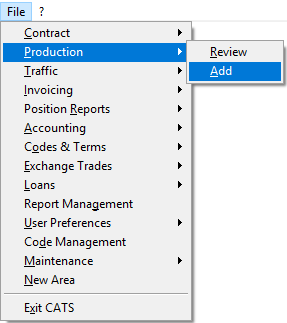
To create the production request, from the main menu select Production > Add.
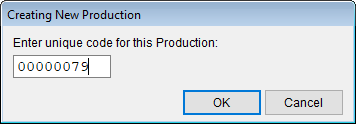
Enter a unique code for this production. CATS will suggest a unique number, but you can put in whatever identifying information makes sense for this production request. Press OK to continue.
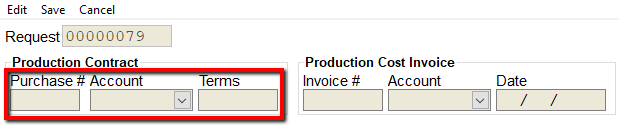
Enter the Purchase Contract Number for the output material. This can be a new contract number, which will close out the original purchase (input) contract and create a new purchase contract. You can also use an existing purchase contract number to place material on an existing contract as a new contract item. Enter the account and shipment terms for this document. Choose Save to continue. (Cancel will undo changes and cancel the new production)
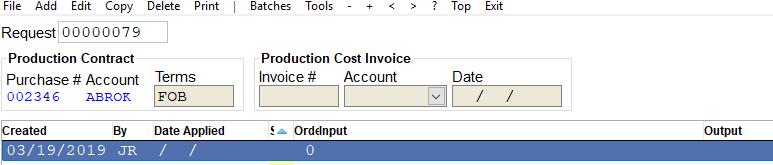
The production request has been created. You can choose Edit if you need to modify any information.
For more information on entering a new batch, see wiki Using Production to Convert Material