Creating Users and Assigning Rights
Creating Users and Assigning Rights
This section will describe the procedure for creating users and assigning rights in CATS. Each menu option in CATS can be assigned a right that users must possess to access that menu feature.
Users ''PB'' and ''SU'' should never be deleted from the system. These user IDs are used to maintain CATS. Rights for these users should encompass all possible rights for the system.
Adding Users
New users can only be added by the CATS Supervisor (User SU). If
you attempt to exceed the number of users allowed by your CATS
agreement, CATS will warn you.
To create a new user, choose Maintenance > General Maintenance > User File from the main menu in CATS.
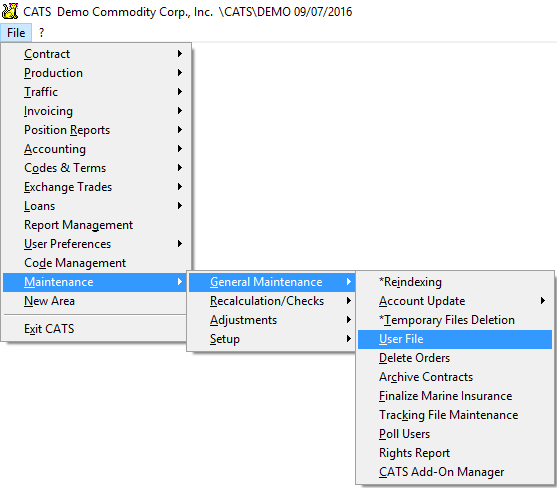
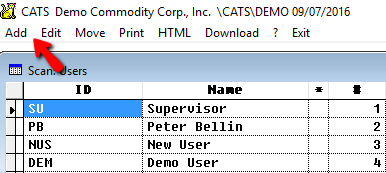
A list of current users will pop up. Choose Add from the menu to create a new CATS user.
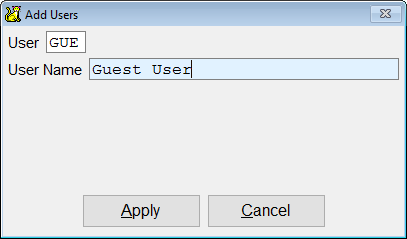
Enter user ID and user name, then select Apply to continue and add the user. CATS will check if the user already exists, then will proceed.
The next screen will allow you to enter a full name and rights for this user. Enter the appropriate details, then pick Apply to save and see a summary of this user’s details.
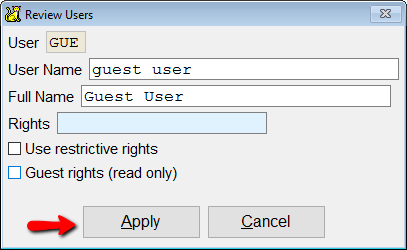
User Options:
- Usuário Convidado - Você também pode optar por definir este
usuário como um usuário
Convidado(Guest), o que significa que o usuário pode visualizar o sistema, mas não pode editar ou adicionar nada. Isso é útil para fornecer acesso ao sistema para auditores. - Direitos Restritivos - Se você escolher esta opção e atribuir a um
usuário direitos
C, por exemplo, o usuário só poderá ver itens de menu com direitosC. No nosso exemplo abaixo, isso significa que um usuário só seria capaz de adicionar contratos de compra. Isso é útil para criar um usuário para executar uma única função ou com acesso a uma única área.
Uma tela de resumo aparecerá. A partir daqui, você pode editar ou excluir este ID de usuário. Para alterar a senha do usuário, escolha Senha no menu. Este recurso é útil para redefinir senhas esquecidas.
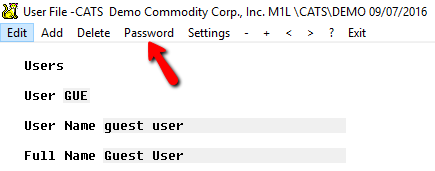
A caixa de diálogo de alteração de senha aparecerá. Insira a nova senha duas vezes e escolha Salvar para prosseguir.
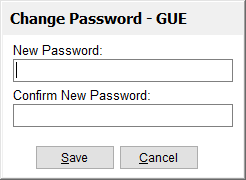
Ao terminar de revisar um ID de usuário, escolha Sair para retornar ao menu anterior.
Você também pode imprimir uma lista de usuários e seus respectivos direitos escolhendo Imprimir na varredura de usuários.
Se um usuário não tiver os direitos para acessar um item de menu, esse item de menu simplesmente não aparecerá para ele.
Assigning Rights Restrictions
All rights are restricted by assigning characters (single letters or
digits) to menu items in CATS. This can be top-level menus (such as
A rights assigned to the entire Accounting area) or as small as a
single menu option on a particular screen (assigning 3 rights to
the Edit function on item screens).
For the purposes of CATS, ''A'' rights are distinct from ''a'' rights.
Log into CATS as SU.
From the ? menu, choose Supervisor > Rights Monitor to turn on the rights monitor feature.
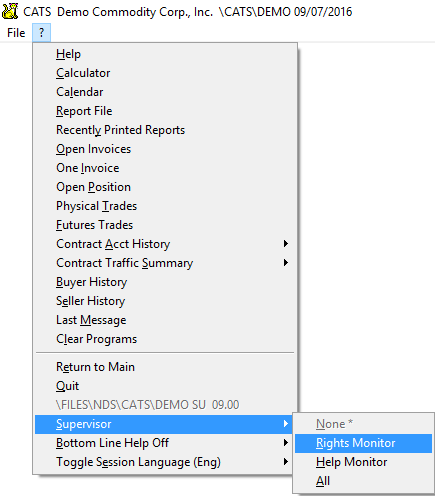
Now, navigate to any menu item in CATS and a scan will pop up with the menu name, location, and any rights currently assigned to it. For example, go to File > Contracts > Purchases > Add.
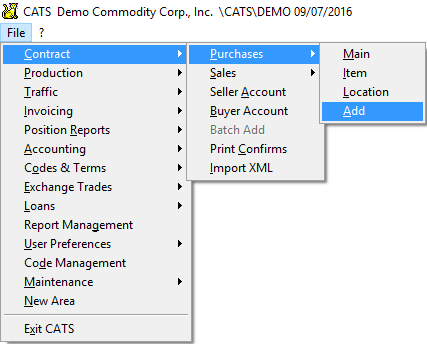
The scan showing current user rights restrictions for the Add Purchases Contract menu item will pop up:
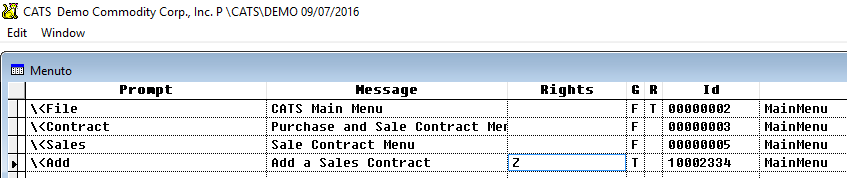
The Add function for Add a Purchase Contract has C rights.
This means that only users with *C rights can add a purchase
contract. The sales Add menu option, however, has **Z**rights
assigned to it.
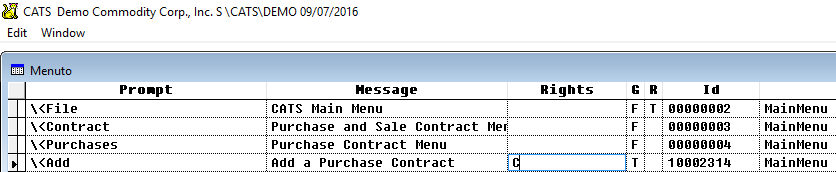
A user will need to be assigned C and Z rights in order to
be able to add both purchase and sale contracts.
Alternatively, you could assign the same C rights on both the
Purchases > Add and Sales > Add menu options. Then a user with
only C rights could add both purchase and sale contracts.
Press the [Esc] key after you have finished editing the rights with this scan to continue. You will actually be in the process to add a purchase contract. Cancel and return to the main menu to keep adding rights.
Turning Off the Rights Monitor
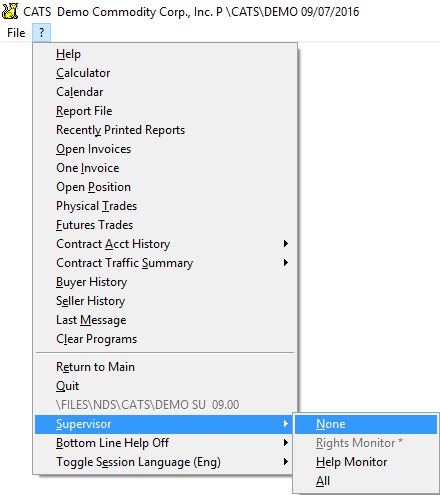
The Rights Monitor should be turned off before exiting CATS. To do this, go to ? > Supervisor > None.
Rights Report
You can see a list of menu items and their respective character-based rights by printing a rights report from the Maintenance > General Maintenance > Rights Report area.
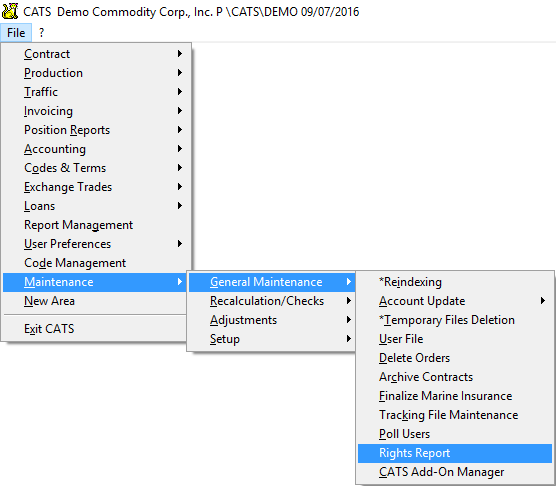
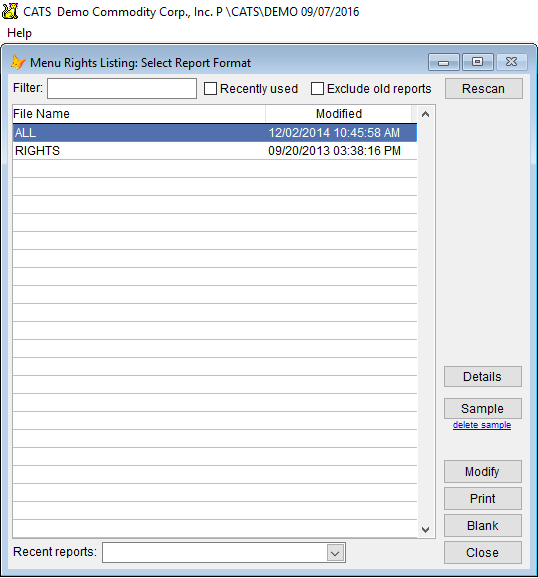
Choose a saved report from the list and pick Print to print or Modify to modify this report.
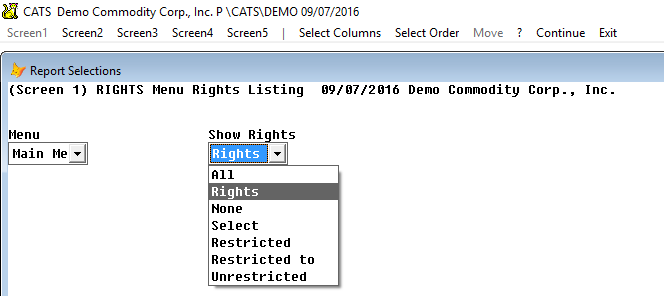
From the filters screen, you can change what to show on this report. We have chosen an option under Rights that will show only menu items with rights. Pick Continue to proceed.
Print the report as normal.

Here is a sample of a rights report, with listings of which menu items have rights on them.
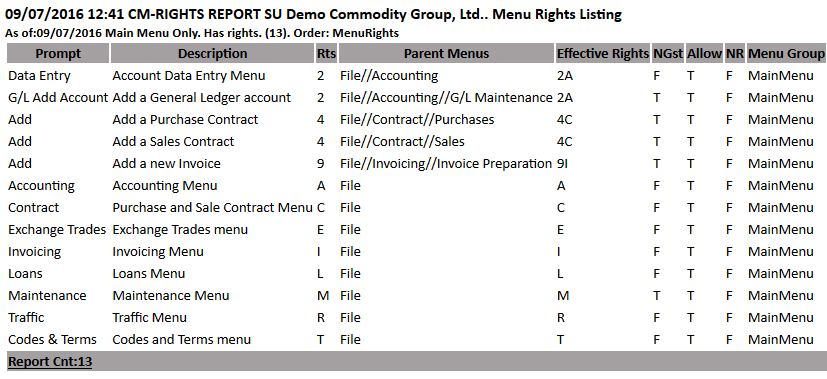
You can compare this report with a printed list of users and the rights they have been assigned.