User Preferences
User Preferences
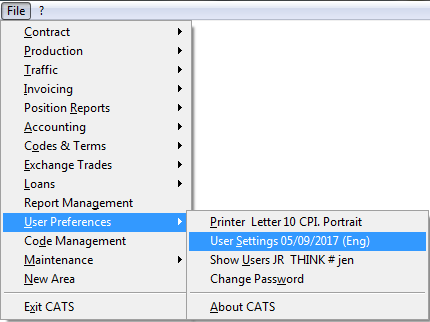
This page details the user-specific settings available in CATS. User settings are unique to each user and are not applied system-wide. Settings are also unique to each area of CATS, so that isolated areas have their own user settings. Go to User Preferences > User Settings.
General
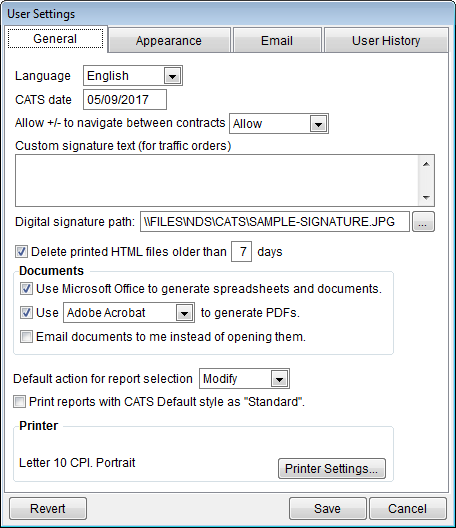
Language - Select a language for your user. This affects the output
language of documents, not the language of menus and on-screen labels.
Choices are English or Spanish.
CATS date - Change your user’s date in CATS for this session. If you
exit CATS and log back in, the date will reset to the date on your
server. This is useful when entering multiple transactions, invoices, or
contracts that occurred on a prior date.
Allow +/- to navigate between contracts - The + and - menu
choices let you navigate from one record to another. When viewing
location screens or contract items, you can be switched to a different
contract, which can be confusing for users. Choices for this menu option
are:
- Allow - Simply moves you to the next record, even if that record is on another contract.
- Prompt - You will be asked every time using the + or - option will move you to another contract.
- Forbid - When the first or last record of a contract is reached, the + and - buttons will have no effect.
Custom signature text (for traffic orders) - Adds a line to traffic
forms for the form’s creator/manager to sign.
Delete printed HTML files older than X days - When checked, all HTML
files printed to a user’s individual HTML folder will be deleted after
the number of days you enter in this box (default is 7). Does not
affect any files in CATS itself, only printed versions found in the HTML
folder. This folder can grow to be extremely large, so if users notice
slowdown, this option should be checked.\
Documents Options
Use Microsoft Office to generate spreadsheets and documents - Prints
Excel Spreadsheets and Word Documents from CATS.
Use Adobe Acrobat to generate PDFs - Select which program to use to
generate PDFs from CATS:
- Adobe Acrobat - Not the free Reader program but the Adobe PDF creator.
- Microsoft Word - Newer versions of Microsoft Word can create PDFs.
- wkhtmltopdf - This is a free tool provided by New Data Systems that allows you to create PDFs from HTML files.
- Run command… - Lets you run a script that creates a PDF.
Email documents to me instead of opening them - If your company is
using the CATS Email Documents module, you can choose to have all
documents you print, including reports, emailed to your company email
address instead of opening them on the screen.
Default action for report selection - When viewing a list of report
files, double-clicking on a report file name can perform one of two
actions:
- Modify - Open up the screens that allow you to change report filters, columns, and order.
- Print - Takes you directly to the print menu.
Print reports with CATS default style as standard - Overrides your
company’s system-wide report settings or a report’s unique style
settings, always using the CATS default style of report printing.
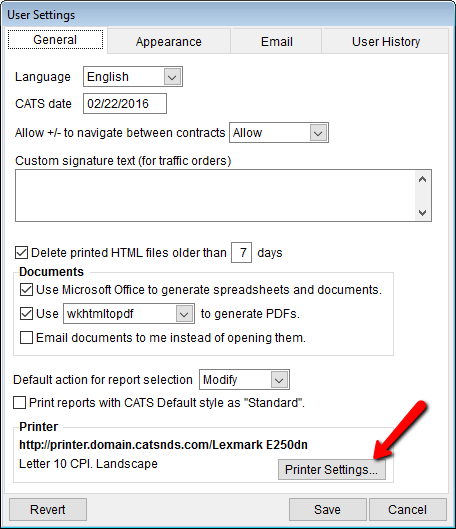
Printer Settings - Click on the Printer Settings button to the
right of the current setting description to open up the printer settings
options.
Printer Options
This is the same settings screen that you would see if you went chose File > User Preferences > Printer from the CATS main menu.
Printer Settings:
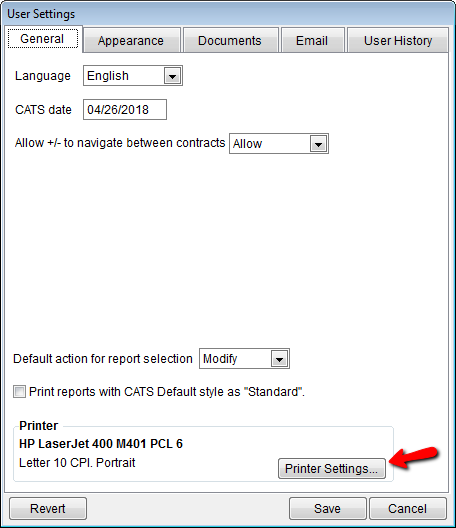
Printer Drop-Down Box - The name of the current default printer is
shown in the drop-down box. In the image above, it reads Send to
OneNote 2016. Use this drop-down box to select a new printer that is
available on this computer.
This is a dot-matrix printer - When checked, CATS uses a different
print file format.
This printer does not support multiple copies - When checked, lets
CATS know that it will be unable to trigger multiple copies of documents
printed from CATS (so this option will not be displayed).
Map network printer to local port - Allows you to indicate which
local port on your machine is used for this printer.
Advanced Lookup… - Lets you look up and find printers on the network
using Windows’ own printer lookup function.
Page Setup:
Paper Type - Select a size of paper. Choices are Letter,
Legal, A4, Wide Letter, or 13” Legal.
Orientation - Choose a radio button to the left of either
Portrait (vertical is the longest side) or Landscape (horizontal
is the widest side).
Text height - Choose Standard, condensed, or expanded text type,
with cpi indicating characters per inch.
Tray - Which tray will be used to select the paper. Choices
available will depend on the printer selected, but Manual Feed
options are better for printing odd outputs like envelopes. Logo
file - If your company uses a logo printed by CATS on physical
outputs, the logo file to be used is indicated here.
Output language - Choose in which language documents will be printed
in the system for your user. Choices are English or Spanish.
Transfer file path - If you use a different path for transfer files
than the path set in the system settings, enter the path in the space
provided or use the … button to look up the path.
Output text file - Indicate which file path and name to use when
saving text files printed from CATS, or click the Locate… button
to look up a different file.
When file exists: - Allows you to either Add to an existing text
file, Overwrite the existing file, or receive a Prompt if that
filename exists.\
Appearance
Options found on this tab allow you to change the appearance of the CATS program, from fonts to the colors of menus and screens.
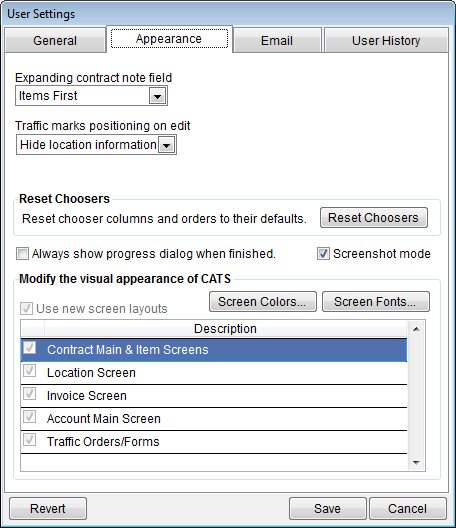
Expanding contract note field - Change this option to give priority to the notes field on the Contract Main screen to show a larger amount of the note instead of more contract items in the list.
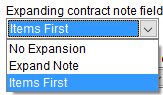
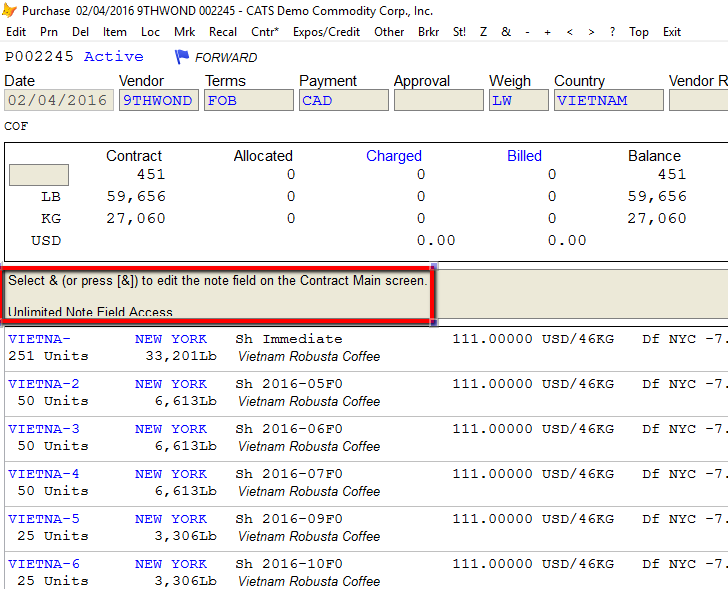
Here is what each choice does: No Expansion - Shows only a few lines of the main contract note field.
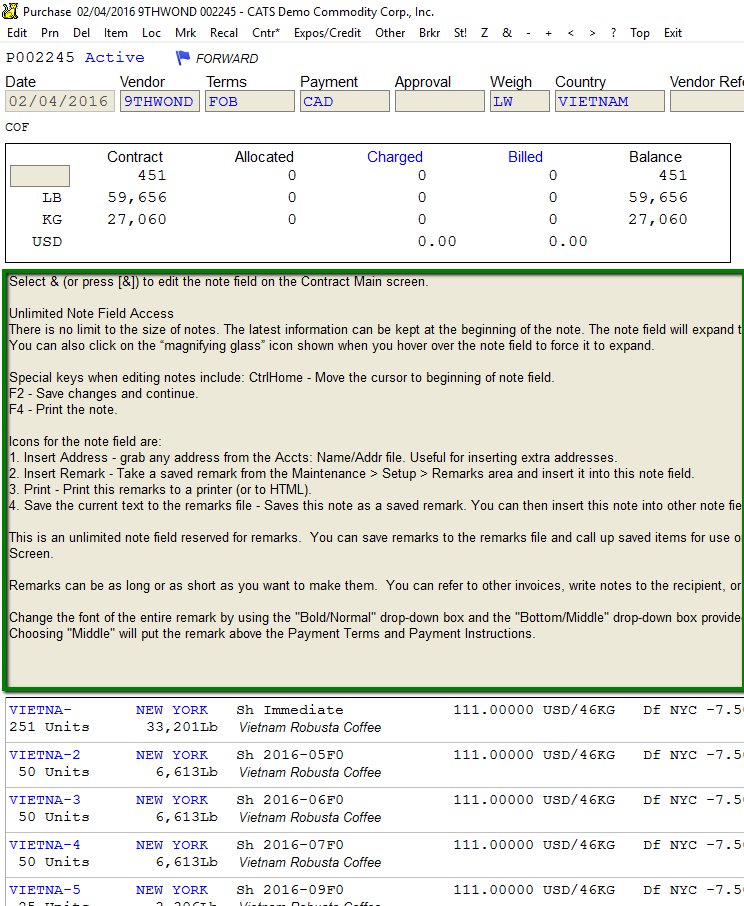
Expand Note - Shows the entire note, then displays the items in a scrollable list.
Items First - Shows the entire item list, then displays as much of the note as fits.
Traffic marks positioning on edit -\
Reset Choosers
Reset chooser columns and orders to their default - Deletes
user-specific chooser settings and resets the columns for all choosers
to the system default. Choosers are lists that each user can order and
configure, such as the list of marks.
Always show progress dialog when finished - Display an on-screen
printout of progress for printing, posting, or recalculating. Disable if
distracting.\
Modify the visual appearance of CATS
Screen Colors - Change screen colors in CATS.
Screen Fonts - Edit display fonts in CATS.
Use New Screen Layouts - Turn on or off new screens for each type of
screen. This option will soon be retired.\
Email
Change or add details about your email address and which email client to use from this tab.
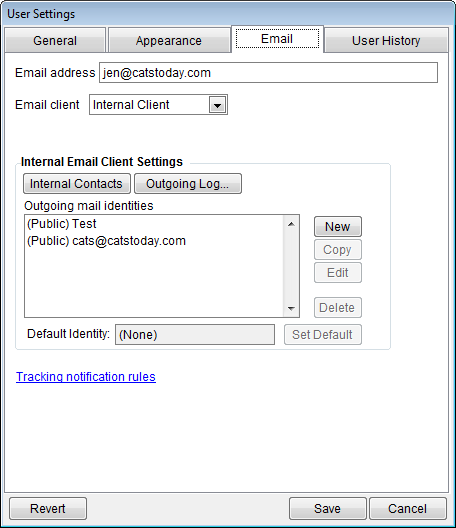
Email address -Must be filled in to use the automatic emailing of
documents.
Email client -Choose which client to use to send emails.
Internal Email Client Setting- If you use the CATS internal email
client, use these options to set up the internal client
Tracking notifications rules - see wiki for details Tracking
notification rules\
User History
The settings on this tab determine how long to keep information in the user history file and how many entries to keep in the recently viewed list.
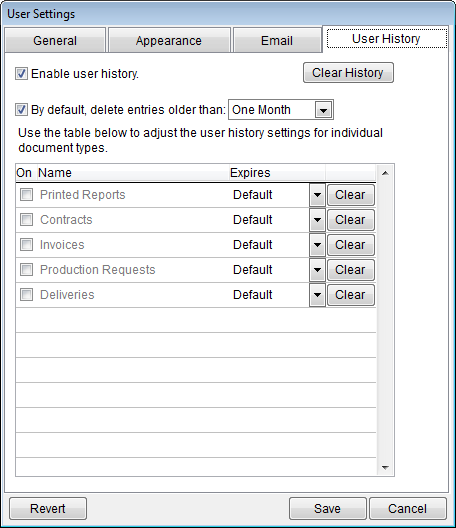
Enable user history.
Clear History
By default, delete entries older than: one month (or choose your
frequency)-
Use the table below to adjust the user history settings for individual
document types-\
- Printed Reports
- Contracts
- Invoices
- Production Requests
- Deliveries