How to Create and Edit Remarks
How to Create and Edit Remarks
Remarks are saved notes or texts you can insert in any note field. Note fields can be found on the contract main screen, traffic orders, invoices etc. There are many ways to create notes (remarks) or edit saved notes.
Create a Remark from Maintenance
You can go to Maintenance > Setup > Remarks.
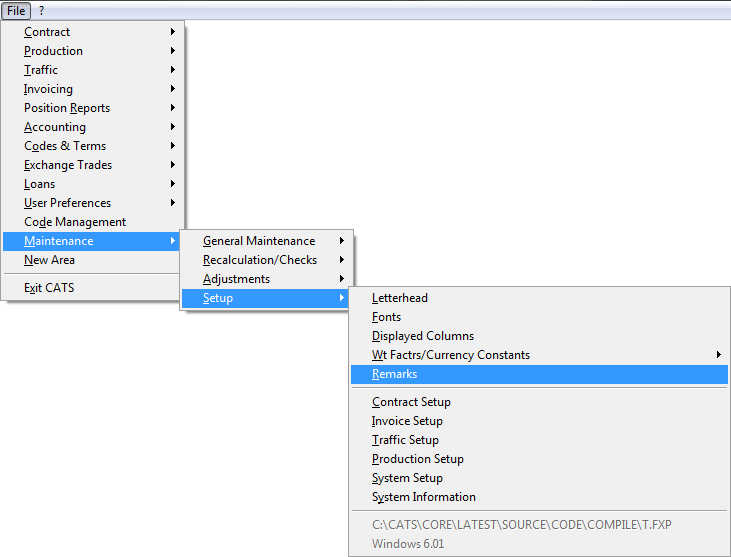
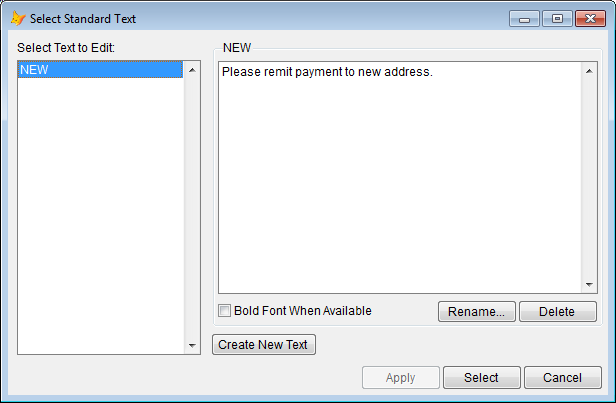
Edit standard texts box will pop up. Click on the Create New Text button to create a new standard text. Clicking Bold Font When Available will print to the printer in bold font, if it’s available.\
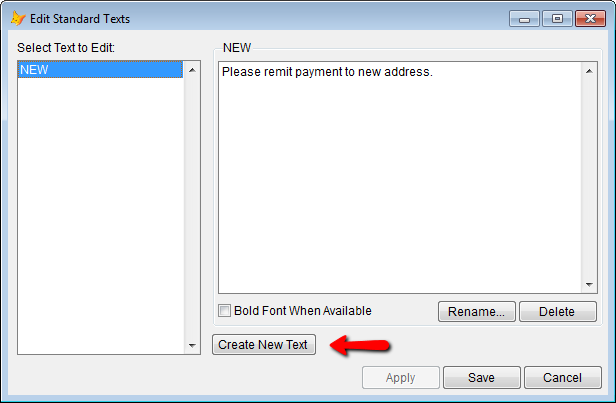
Enter a name for this remark and click OK.
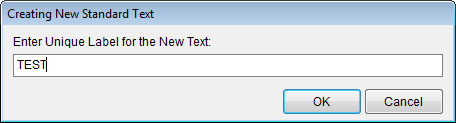
You will return to the edit text box pop up. Enter text for this remark in the large box to the right and then click Apply.\
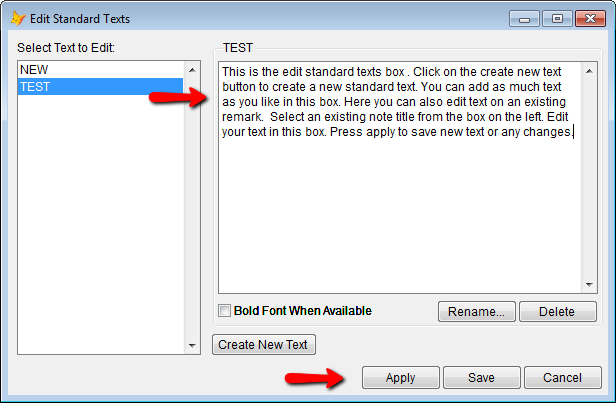
You may also edit an existing remark. From edit standard texts box, select a note title to edit an existing remark.
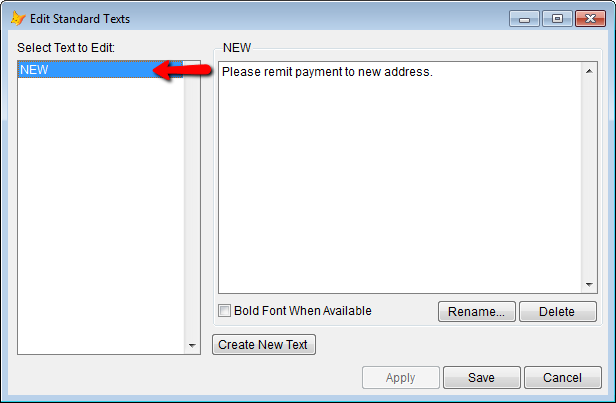
Edit the existing remark in the large box on the right and then click Apply.\
Default Payment Instructions
If you create a remark with the name of PAYMENT, the text of that
remark will automatically be pulled into the Payment Instructions
field on a sale invoice when an invoice is created.
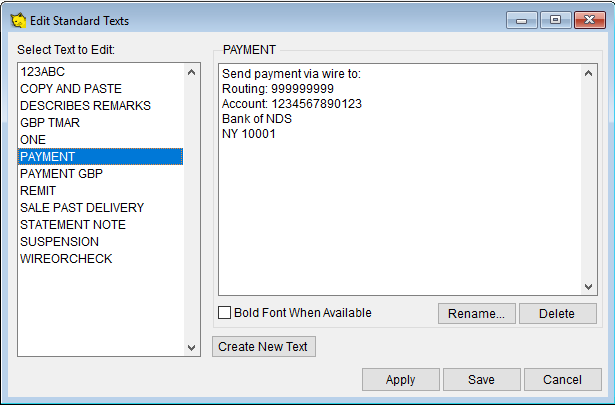
You can also create default remarks for other currencies you are using
in the system by calling them PAYMENT ZZZ, where ZZZ matches
the system currency code. Then, if the invoice is in GBP, the remark
named PAYMENT GBP will pull into the Payment Instructions
field.
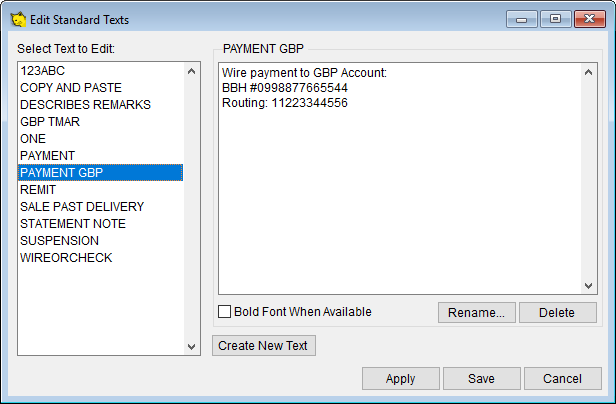
If no currency-related mark is found, CATS will NOT pull the default PAYMENT remark onto the invoice.
Inserting Remarks
Remarks can be called up in any note field through a few different methods.\
Magnifying Glass
Go to Edit on the top menu.
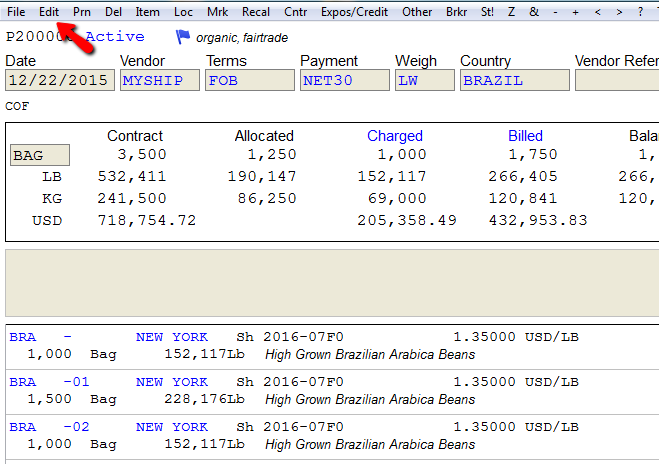
Now you may click in any note field and click the magnifying glass on the bottom right of the note field.
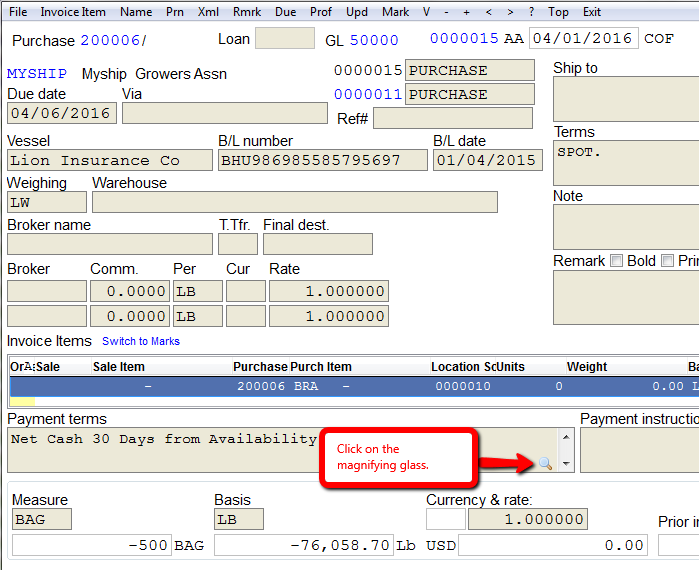
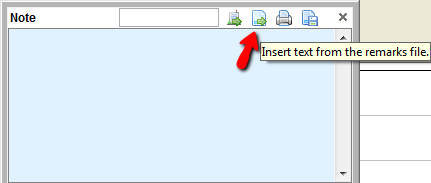
The note box will pop up. Click on insert text from the remarks file.\
The select standard text box will pop up. Proceed to select or edit text or create new.\
Shift and F3
Go to Edit on the top menu.
Now you may click in any note field and press keys [shift] and [F3] at the same time. Click Retrieve a Standard Text from the pop up.
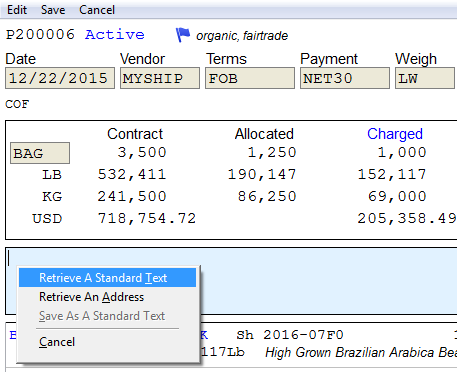
Then proceed from the standard texts box.
Edit and Then Right Click
Go to Edit on the top menu.
Now from any note field you can right click from your mouse to pull up the note field.
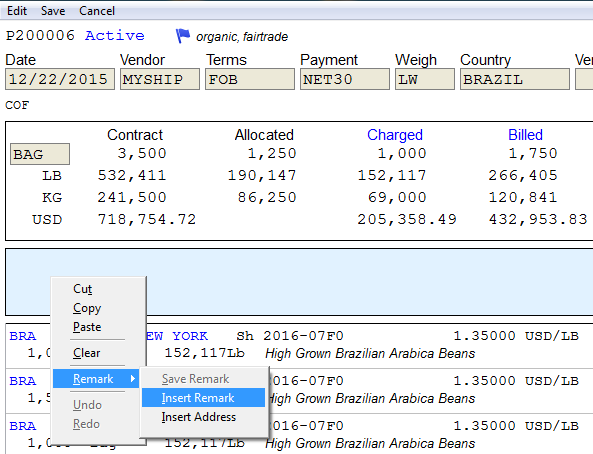
Pick Remark > Insert Remark. Then proceed from the standard texts box.
Ampersand Symbol(&)
Navigate to your purchase contract or location screen. Click on the ** & ** (Ampersand) symbol on the top menu. This will pull up the note box. Click on insert text from the remarks file.
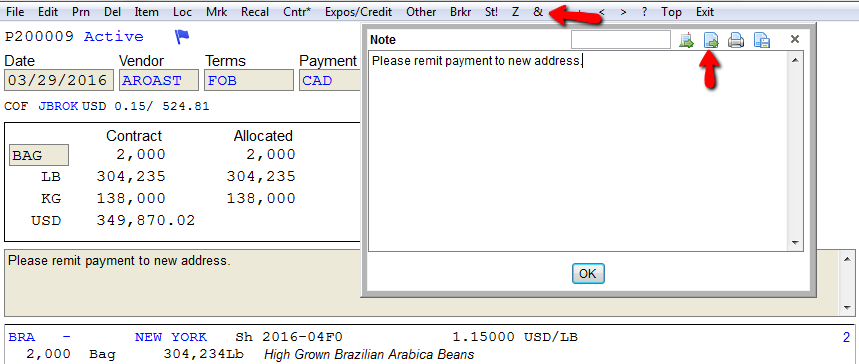
Then proceed from the standard texts box.