Using the Question Mark Feature
Using the Question Mark Feature
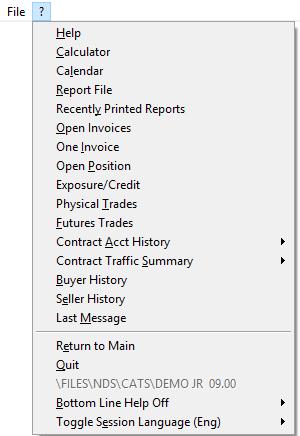
The Question Mark (?) menu is available to you wherever you are in CATS. Use the Question Mark (?) to access Help quickly, to bring up tools including the Calendar or Calculator, or to use other features.
The ? gives you access to many convenient pop up functions.
Help
Choose Help to access help files. When you are working in CATS and you select Help from the Question Mark menu, CATS will open the CATS wiki page. Here you can find detailed information on procedures, terms, features, and everything else you need to get the most out of using CATS.
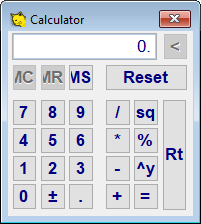
Calculator
Accesses the CATS calculator feature.
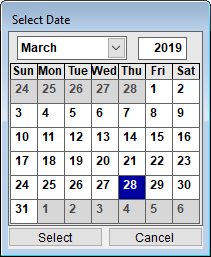
Calendar
Accesses the CATS calendar feature.
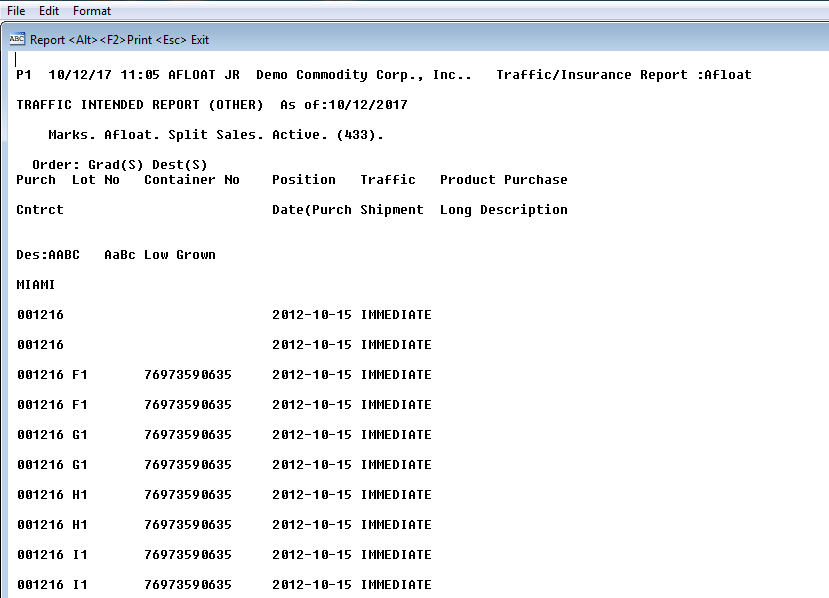
Report File
This menu item will show the last report you printed to text. Once open, you can treat it like a text file, and use the toolbar functions File, Edit, or Format. Use Esc to exit.
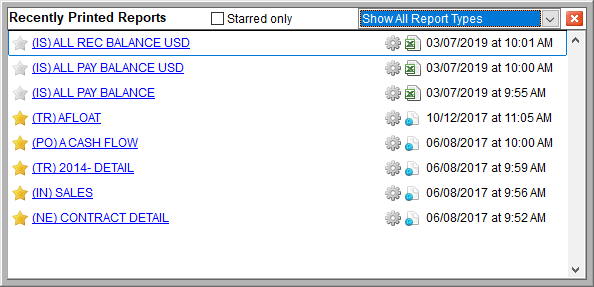
Recently Printed Reports
A list of the most recently printed reports for this user. See the wiki on Recently printed reports for more information.
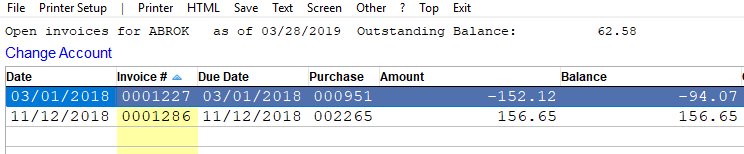
Open Invoices
Use this option to see a report of open invoices for the selected account. See the wiki on the Open invoices quick report.
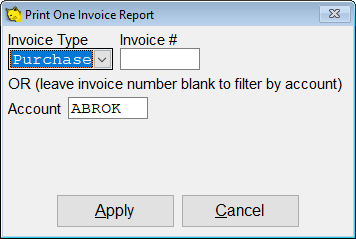
One Invoice
Choose one invoice to print a detailed report of transactions for one invoice. See the wiki on the One Invoice Statement for more information.
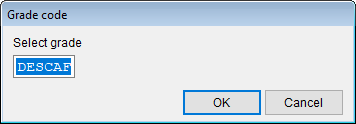
Open Position
Choose Open Position to see all open position information for one description/grade code. See the wiki on the Open Position Quick View report for additional information.
Physical Trades
The Physical Trades quick view lets you browse a record of every physical trade entered into CATS.

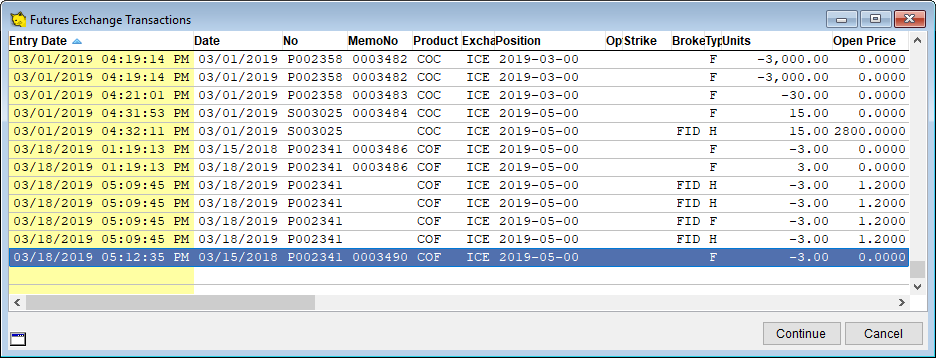
Futures Trades
The Futures Trades quick view allows you to browse record of every futures trade entered into CATS. For more information about futures trades see Working with Future Trades.
Contract Account History
This feature allows you to see the accounting activity on a particular contract (purchase or sale).
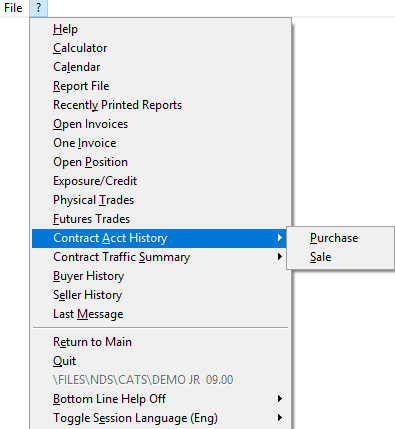
CATS will ask you to identify a contract by number.
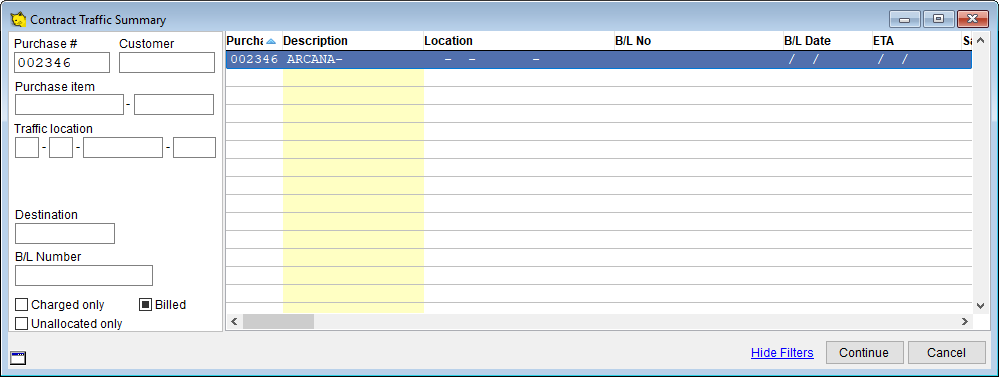
Contract Traffic Summary
Use this option to see all traffic screens for a particular contract displayed on a scan screen. CATS will prompt you to enter a contract number. You can also search by item number or location. Check the box billed to see contracts that have been billed. Un-check the box to view open invoices.
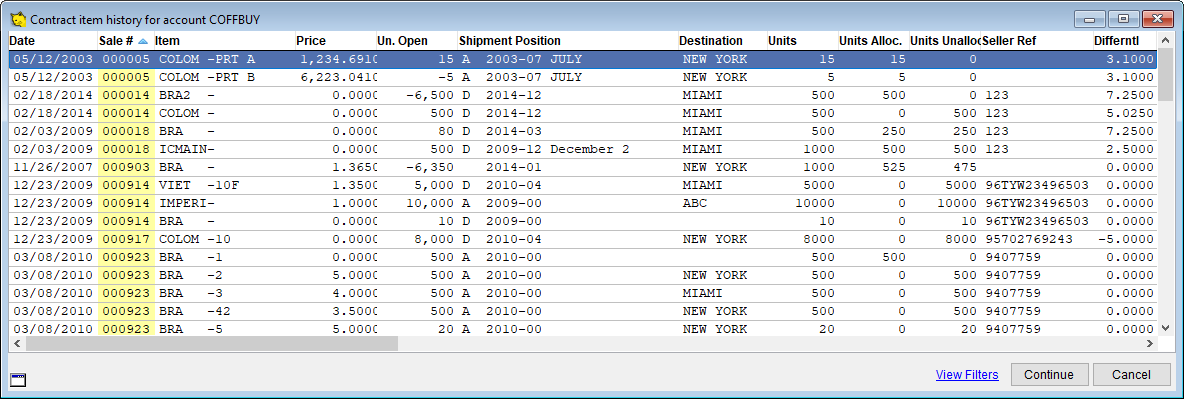
Buyer History/Seller History
Quick view of a report gives a history of sales or purchases for a particular account. Choose View Filters to view a different account.
Last Message
Displays the last message shown on the top-right of the screen, for example a warning.
Clear Programs
Contact New Data Systems for use.
Return to Main
Use this option to quickly return to the CATS Main Menu.
Quit
Use this option to log off of CATS.