One Invoice Statement
Accessing and Printing One Invoice Statement
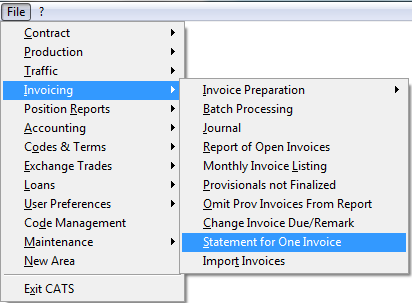
There are two ways to access one invoice statement. Go to Invoicing > Statement for One Invoice.\
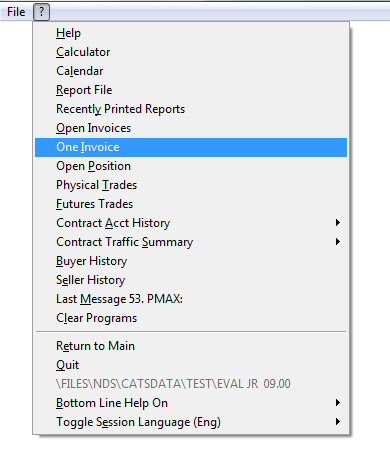
Or you can get one invoice statement from the Question mark ? > One Invoice on the main screen.\
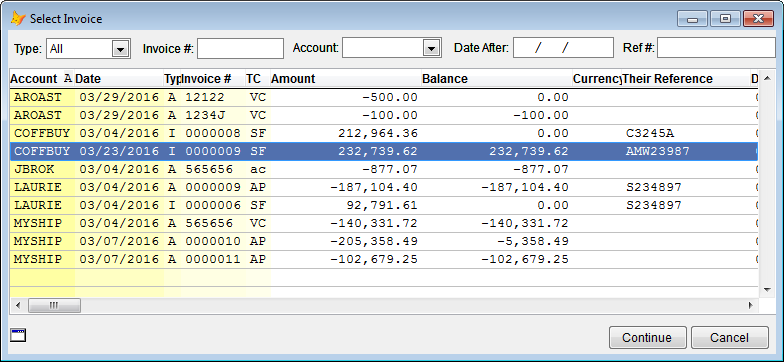
Select the invoice you want and press Continue. You can also search
for the invoice by:
Type (All, Sale, Purchase or Vendor), Invoice Number, Account,
Date After or Ref Number.\
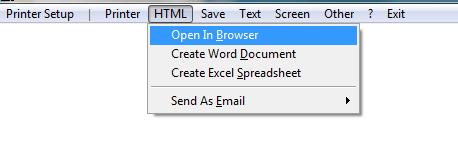
Then print the invoice in the format you want.\
Reading the Invoice Statement
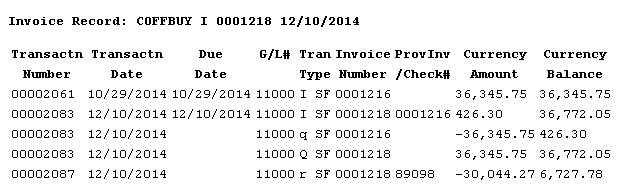
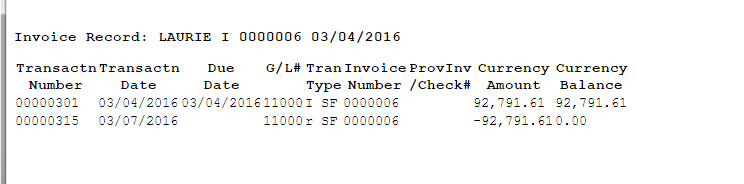
The invoice statement has the following information as read from the
screen, left to right.
Transaction # - This number is assigned by CATS.
Transaction Date - Date of the invoice or receipt.
Due Date - Date it is due.
G/L #
Tran Type - Invoice or receipt. See
transactiontypes for more
information on transaction types.
Invoice Number
ProvInv Check #
Currency Amount
Currency Balance\
This is a simple invoice.
Line 1 is the invoice record.
Line 2 is the receipt.\
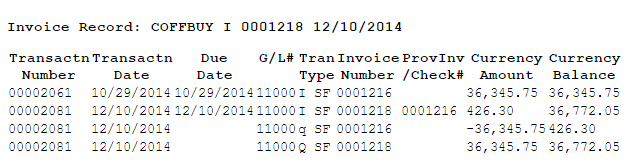
This in a more complex invoice.
Line 1 is the invoice record.
Line 2 is the final.
Lines 3 & 4 are the internal CATS transactions to move the balance to
final.\
Here is the same invoice statement (as above), with an added Line 5 - receipt.\