Using Multiple Currencies in CATS
Using Multiple Currencies in CATS
CATS allows you to use multiple currencies in the system. To do this, you set up a default currency (usually USD) and any other currency products you want to use. CATS asks you to input currency rates to figure out the amount for conversion to the default currency.
Currencies are used for determining prices and amounts throughout the entire system.
A bank code can only use one currency. This means that all transactions into one bank must use a single currency. This same restriction also applies to G/L numbers.
Setting up Currencies in CATS
To begin using currencies, you must first add the currency as an exchange product and an exchange, then you can enter a default currency rate to be used.
Adding an Exchange Product for the Currency
First, you will need to add an exchange product for this currency. From the Main menu, go to Exchange Trades > Exchange Products.
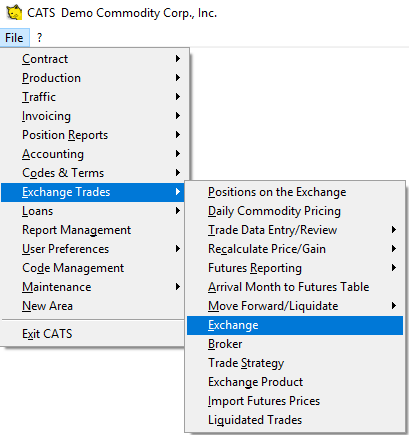 Exchange" />
The Exchange Products scan will pop up. Select Add from the toolbar
menu to create a new exchange product. In the next box, enter a code for
the new currency, such as CAD, for CATS to use as the exchange
name.
For CATS to recognize this product as a currency, the Exchange field must be filled in as ''CUR''.
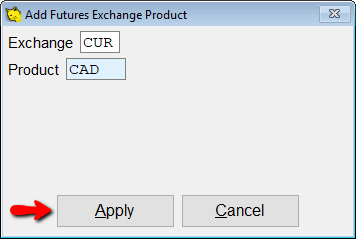
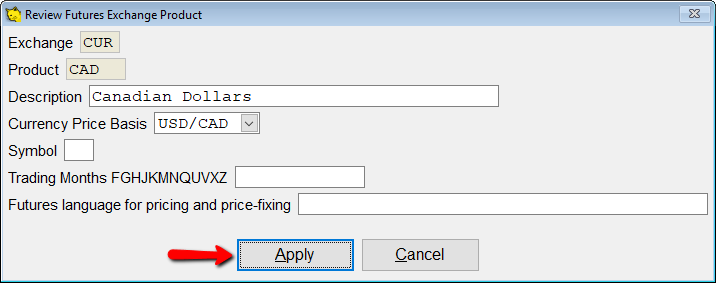
Pick Apply to continue. Enter more details about the CAD
exchange product you have added on the next screen, then pick Apply
to proceed.
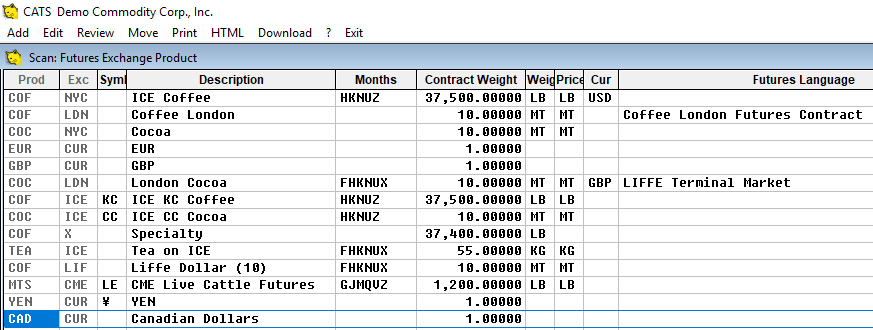
CATS will return to the list of exchange products so you can review your
changes. Pick Exit to leave this scan.
Adding an Exchange for the Currency
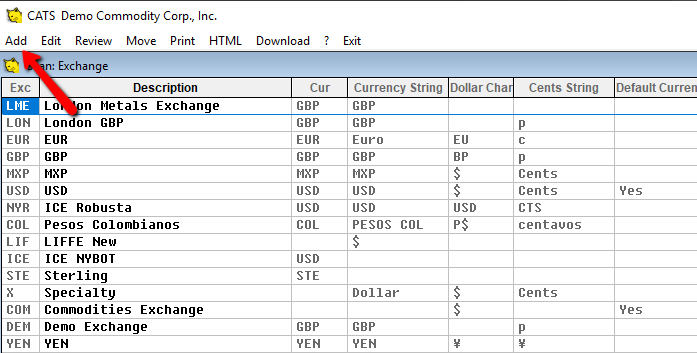
Next, you will need to add an exchange for each currency. From the Main Menu, go to Exchange Trades > Exchange.
Choose Add from the toolbar menu to create a new exchange.\
Enter a code for the new exchange. To make this easier, you should use
the same code you used for the exchange product above.\
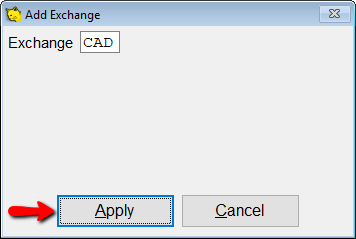
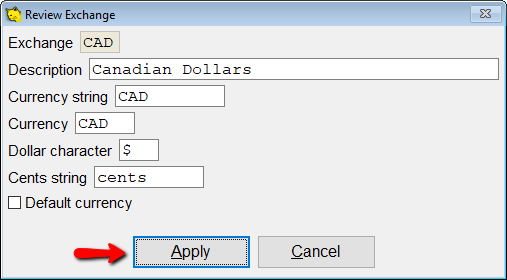
Select Apply to proceed. On the next screen, you can input more details about this currency exchange. When you have finished, pick Apply to return to the list of exchanges.\
You will see the new exchange on the list.
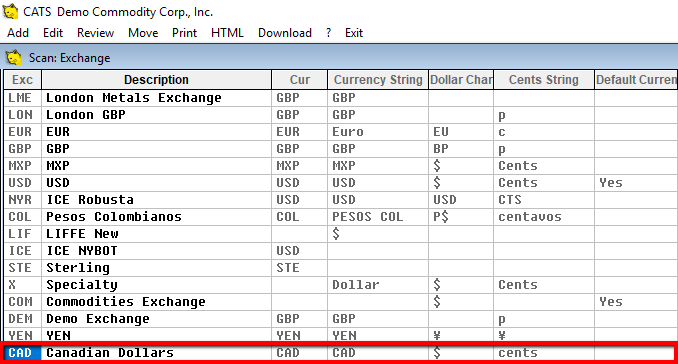
Select Exit to leave this scan.
Entering Currency Rates
CATS uses several ways to find the exchange rate for currencies.
Positions on the Exchange
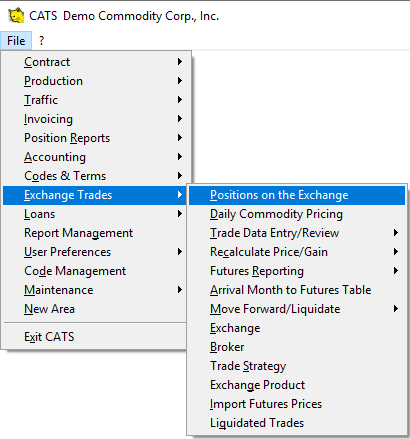
You can set up default rates on a daily or monthly basis for CATS to use with currencies. This is done by adding these rates as positions in the Positions on the Exchange area. Starting from the main menu, go to Exchange Trades > Positions on the Exchange.
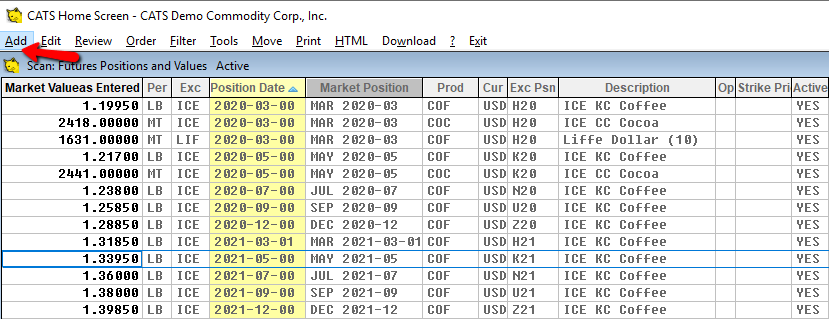
This is a list of positions currently active in CATS that are used to
value material, or, for our purposes, currencies. Next, select Add
from the toolbar menu to create a new position for the currency.
Enter details about the new exchange position here:
- Enter the Exchange as
CUR. - Enter the Product as
CAD(or your chosen currency code). - Enter a position date.
- Choose Not an option from the drop-down menu.
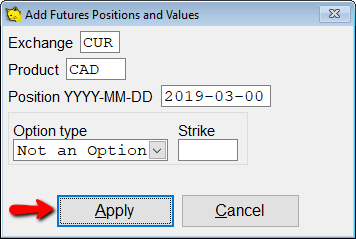
When finished, click Apply to continue. CATS will display the list of positions again. Select Exit to leave this area.
Rates on Contract Items
Currency rates can be entered on fixed prices and differentials on individual contract items. This helps CATS calculate the default currency amount.
You can enter either a fixed currency rate OR use a currency position you have already added in the system.
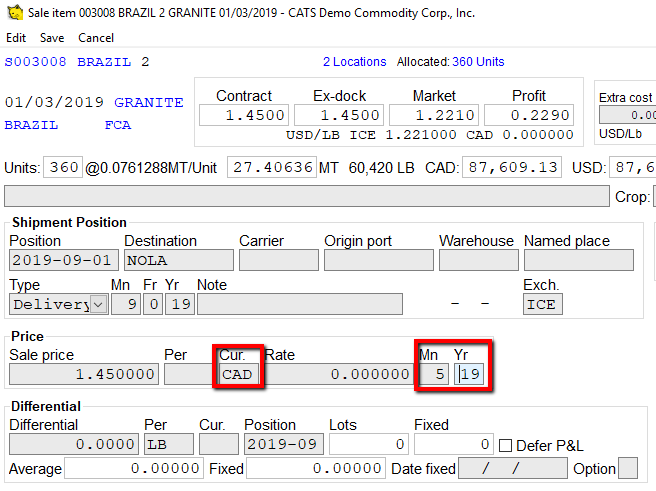
While reviewing a contract item, choose Price$ from the menu to change the fixed price on the contract item.
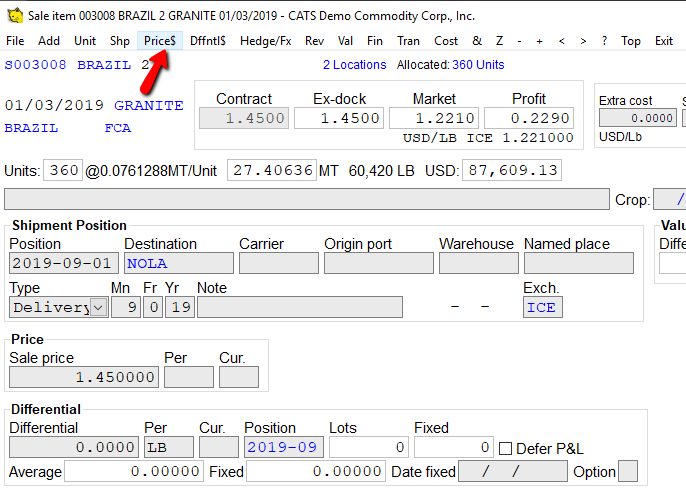
Enter a currency code in the CUR box. Then, you can enter either a
rate in the Rate box OR a currency month in the Mn and year
Yr boxes. In this example, we have entered CAD and 5
19, which means the currency rate for CAD for position 2019-05
will be used.
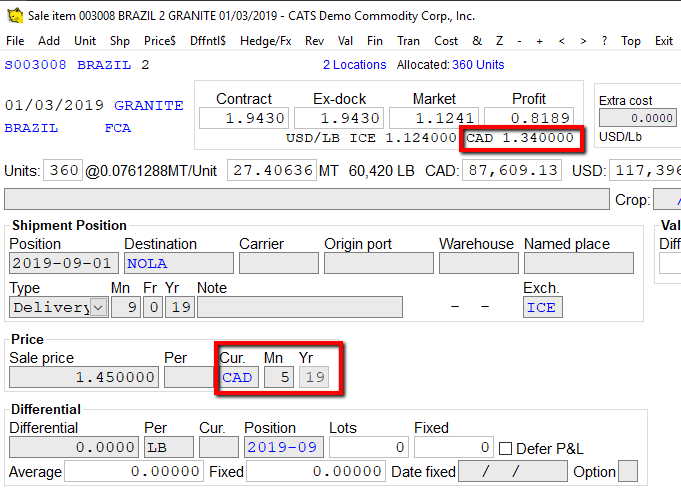
Choose Save from the menu above to save and continue. CATS will display the currency rate to be used in the P&L box above.
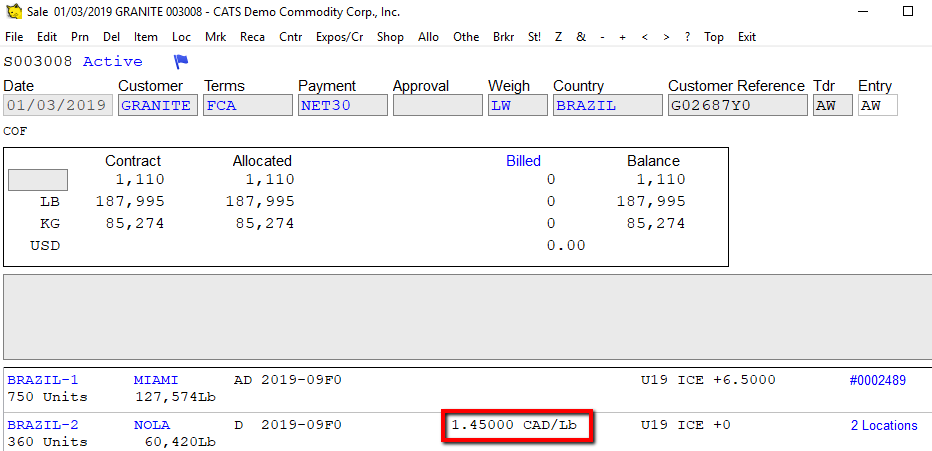
When viewing the list of contract items, you can also see which currency the item is priced in.
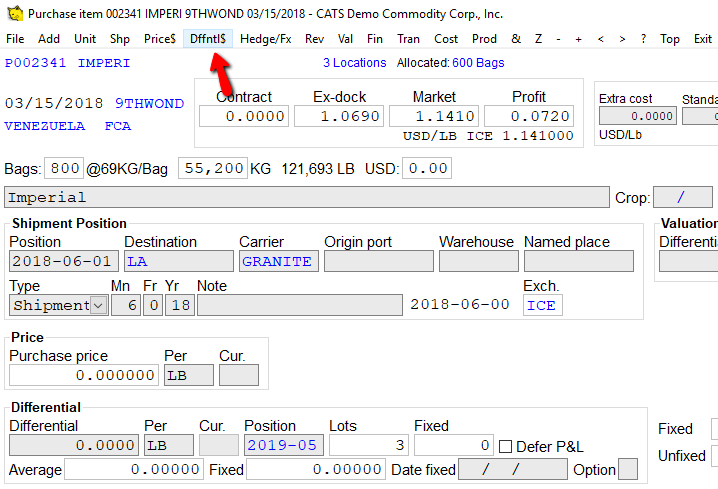
To change the differential price, select Dffntl$.
Enter a currency code in the CUR box. Then, you can enter either a
rate in the Rate box or leave it blank to use the currency rate
for the differential position.
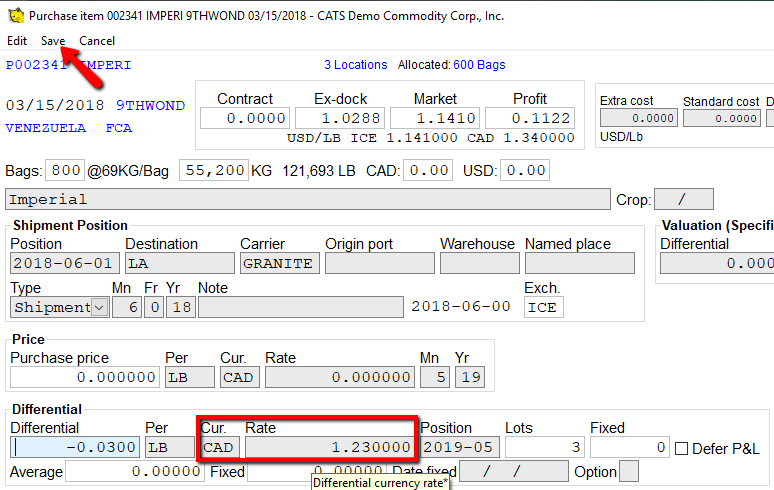
Pick Save from the menu to apply and continue.
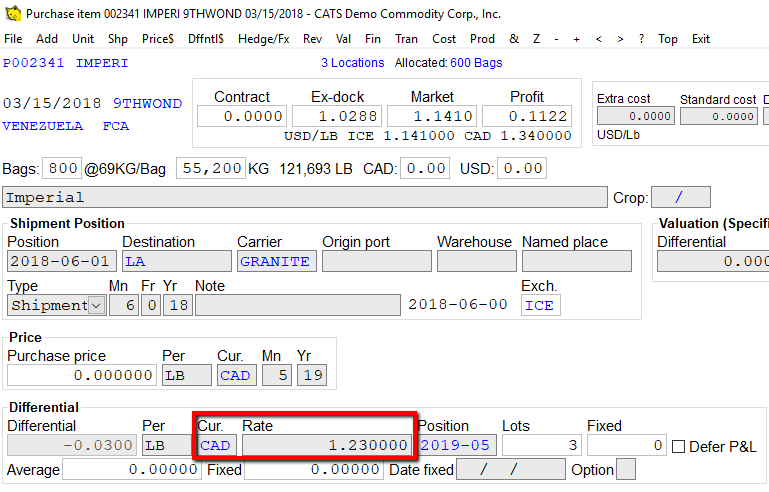
Remember, unless you are using a USD/Lb basis, the differential field is in dollars per unit, not in cents.
CATS will display the rate you have selected.
Rates on Invoices
Rates on Broker Commissions
Currency Rate Table
Multiple Currency Transactions
Turning on the Multiple Currency Setting
Contact New Data Systems to see how to turn on the setting to allow you to use multiple currencies.