Batch Add Contracts
Batch Add Contracts
CATS allows you to add multiple contracts or contract items to a contract at a time. You can perform this procedure on purchase or sales contracts and items. This allows you to quickly add new contracts in a sequence that have similar details.\
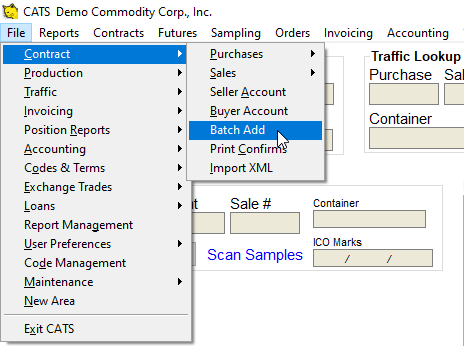
To access the Batch Add Contracts area, from the File menu go to Contracts > Batch Add.\
Contract Information
Now you will be in the tool for batch adding contracts or items.
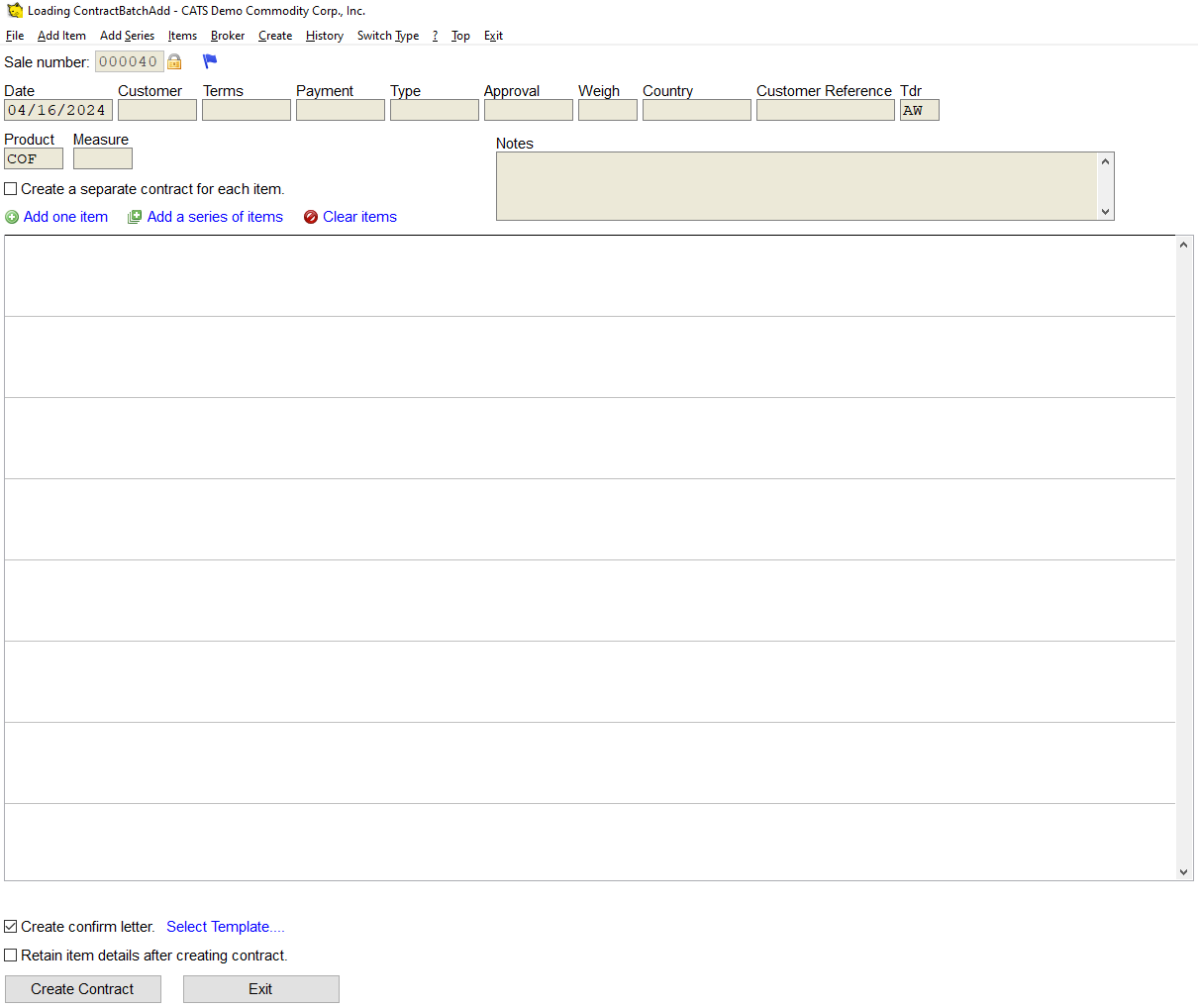
The batch add contracts tool defaults to adding sale contract items. To switch modes, select Switch Type from the menu.
XXBLOCK2XX
You will be prompted to switch to the interface for adding purchase items.
XXBLOCK3XX
If you decide to switch back to adding sale contracts, click on Switch Type again and confirm you want to switch to adding sale items/contracts.
Contract Main Level Details
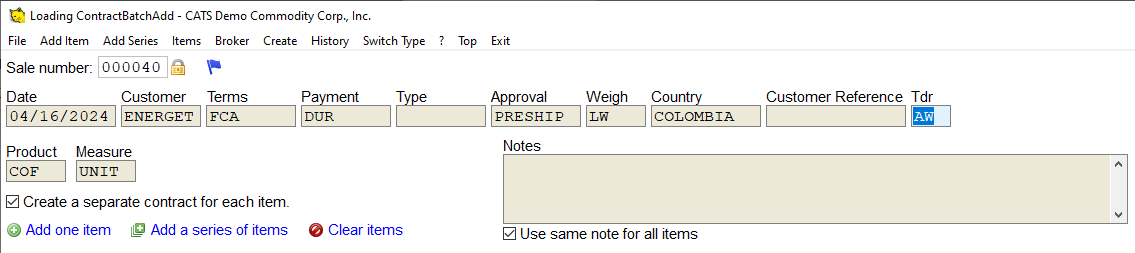
Enter the details about the contract(s) you wish to add in the space provided, including Date, Customer, Terms, Payment, Type, Approval, Weigh, Country, Customer Reference, and Tdr. You can enter Product, Measure, and Notes as well. These details will be copied to every contract you create.
Adding Items (or Contracts)
To add a single item, click on the green plus icon next to the Add an item link. To add multiple items, click on the pages icon next to the Add a series of items link.
To make each item into a separate contract, click the box to turn on the option to ''Create a separate contract for each item.''
To clear added items, click on the Clear Items icon.
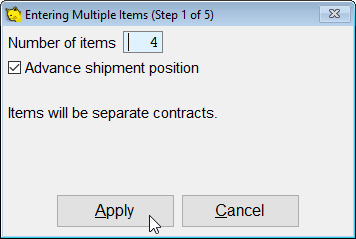
Enter Item Number
Input the number of items you want to add, as well as choosing whether or not CATS will advance the position by one month for each item.
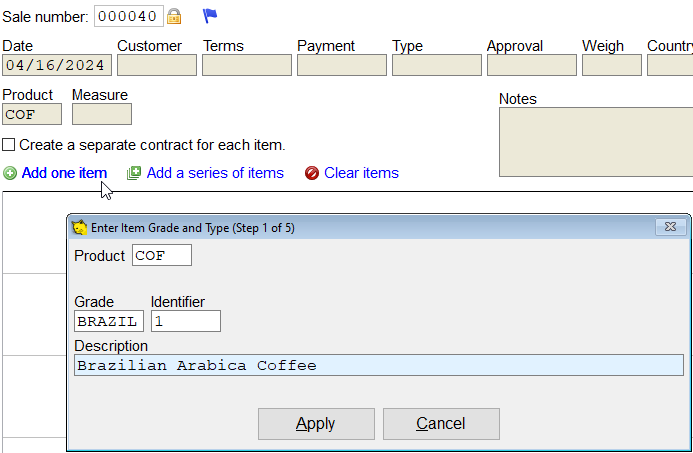
Enter Product Details
Enter the type of product to add on every item. Press Apply to continue to the next step.
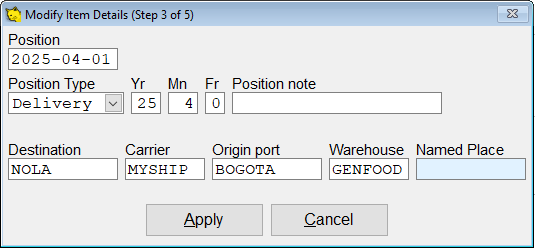
Enter Units and Weight
Enter the product shipment and position details and pick Apply to continue.
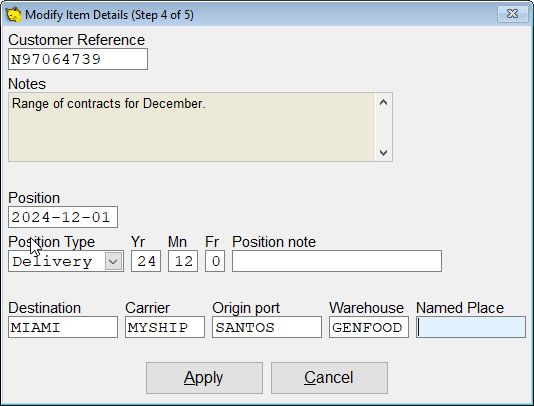
Enter Shipment Details
Enter the customer number, as well as position and delivery details such as destination here.
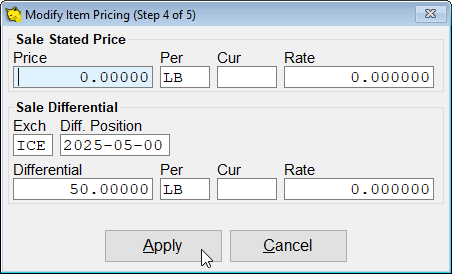
Enter Price Details
Input the price details and pick Apply to continue adding the item.
Finalize Creation
When you have finished, click the Create Contract button to create the new contract(s) or items.
The example shown is a single contract with four items, created using the Add a series of items tool, with a range of shipment/delivery dates.
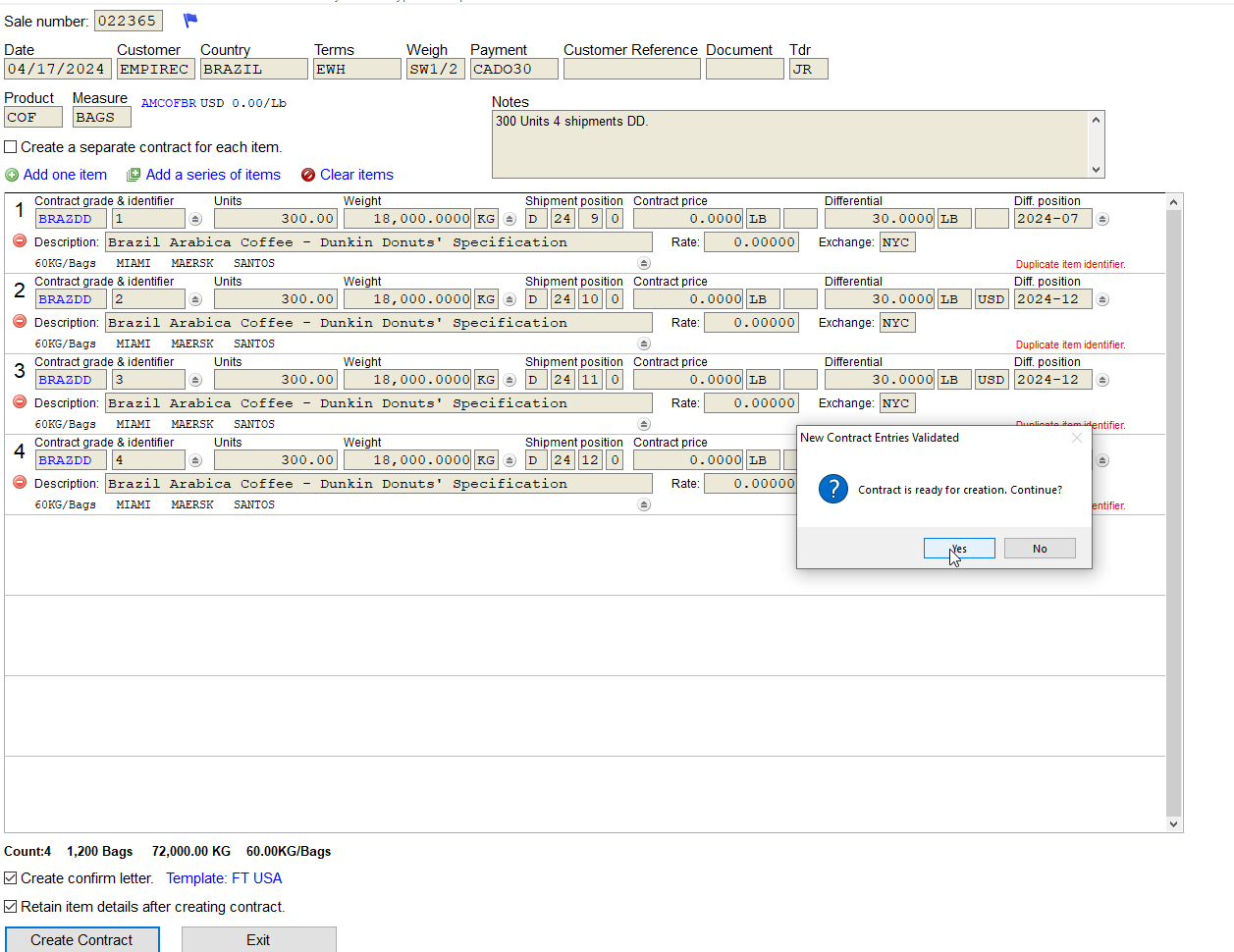
Click the Yes button to continue.
The contract will be created and you can review it.
Creation History
elect History from the menu to see a list of previously created items.

Choose the starting contract from the list and you will be taken there to view as normal.
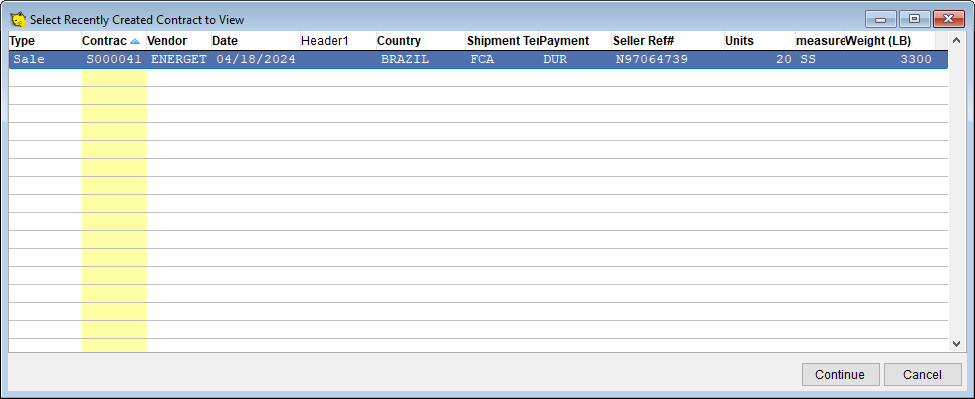
From there, you can work as you normally would in CATS or hit Exit to return to the Batch Add area. []