Adding Other Traffic Codes
Adding Other Traffic Codes
This is a step-by-step guide to adding other traffic terms in CATS.\
Quick Guide Steps
- From the main menu, go to Codes and Terms > Other Traffic Codes and choose your traffic code.\
- Select Add from the top menu bar.\
- Enter the new code and press Apply.\
- Enter the relevant details and pick Apply.\
- Press Exit to return to the scan main page.\
Adding Traffic Codes
This page details how to enter and modify codes found under the Codes and Terms > Other Traffic Codes Menu. Other traffic terms include:
- Vessel
- Voyage
- Pier
- Warehouse
- Documents
- Packing
- Location
- FDA Registration
- Title Holder
- Quality
- Traffic Status
Choose the traffic term.\
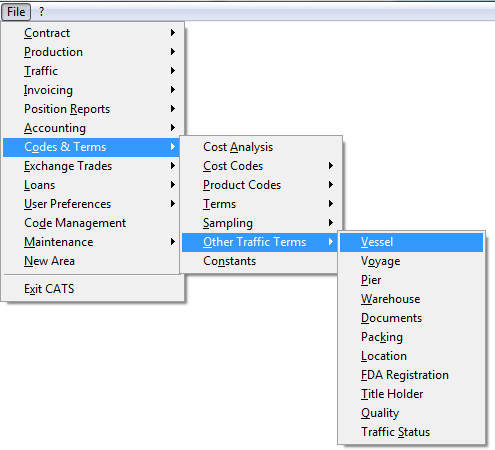
Vessel
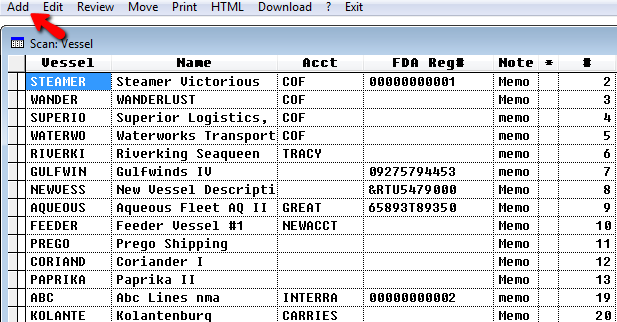
Once it opens, pick Add, and you will be asked to enter a vessel code. Enter the code and pick Apply\
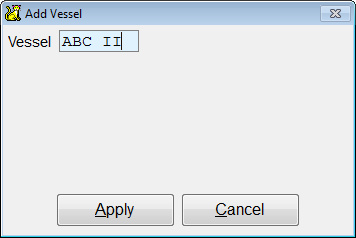
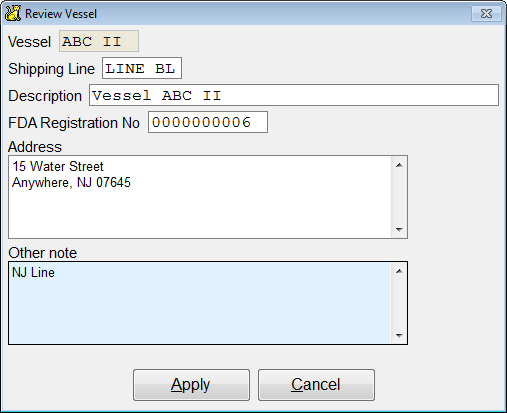
Enter the relevant details and pick Apply.\
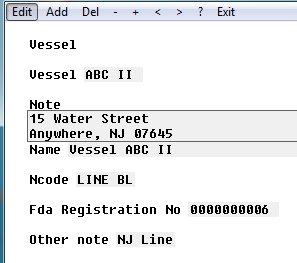
The newly created vessel code will show on screen. Press Exit to return to the scan vessel main page.\
Adding all other traffic terms work in the same manner as the vessel scan described above.
Voyage
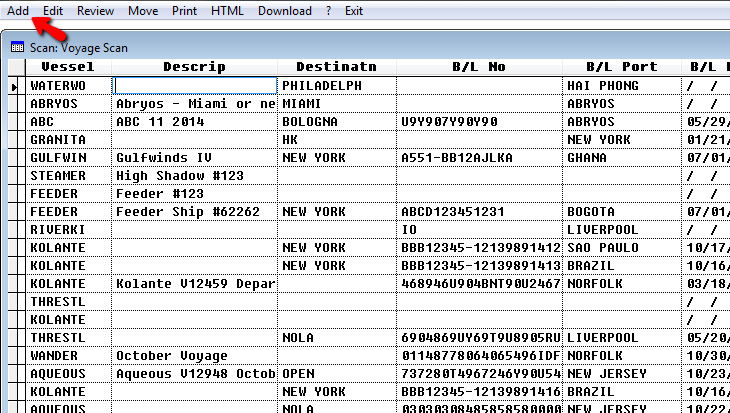
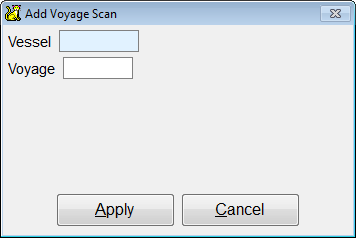
Choose Add from the top menu bar. Then enter a Voyage and existing Vessel code and pick Apply\
Enter as many details as necessary and pick Apply.\
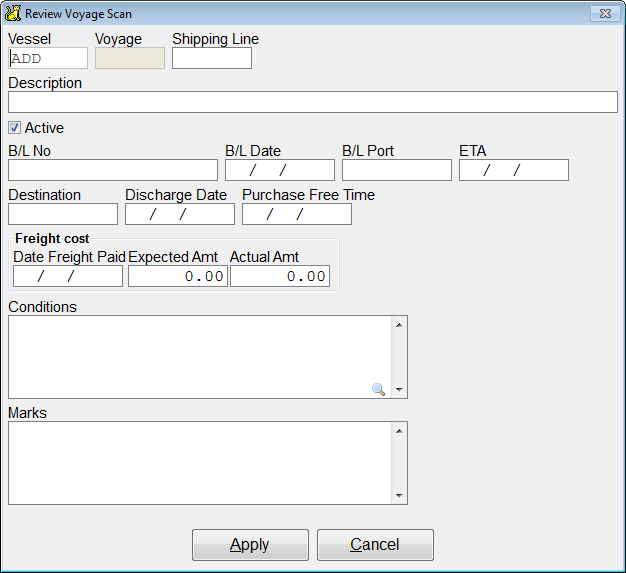
Voyages can be used to apply the same details across multiple location screens. If you enter a Voyage number that already exists and has details in CATS, you will be prompted to update the traffic information on the current location screen from the relevant voyage file. This can save you time and keep users from making mistakes entering information
Pier
\
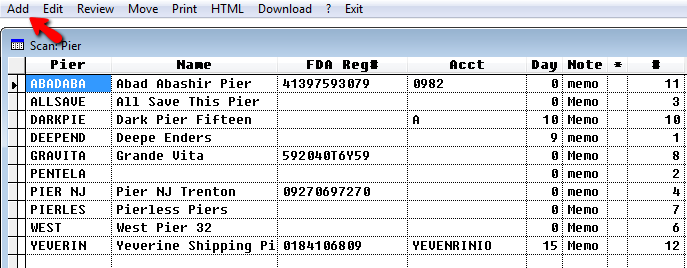
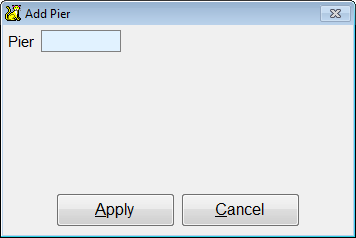
Choose Add to enter a pier code. Enter the code and pick Apply\
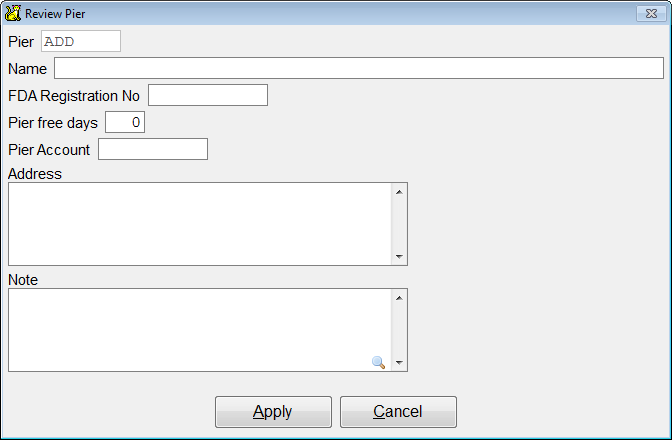
Enter the relevant details and pick Apply.\
Warehouse
\
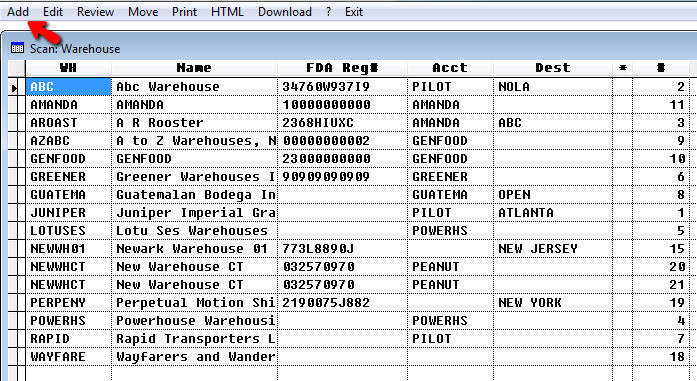
Choose Add to enter a warehouse code. Enter the code and pick Apply\
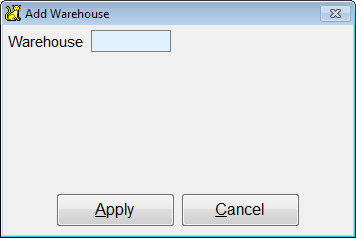
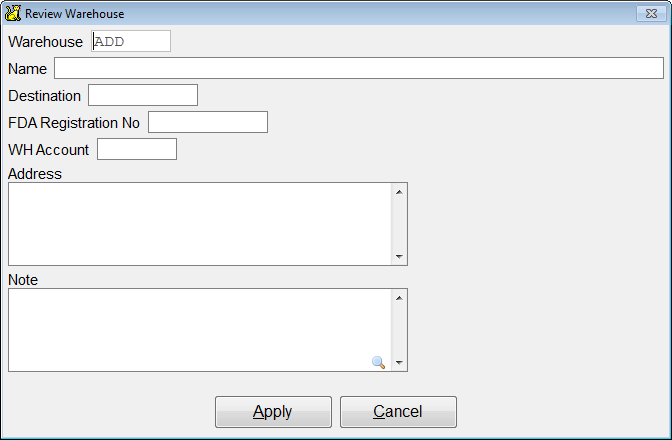
Enter the relevant details and pick Apply.\
Documents
\
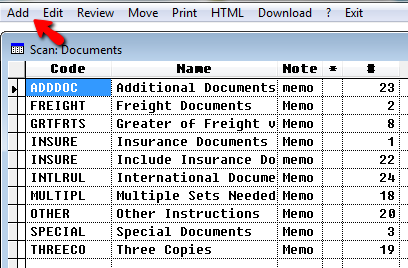
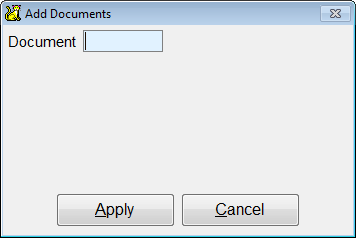
Choose Add to enter a documents code. Enter the document code and pick Apply\
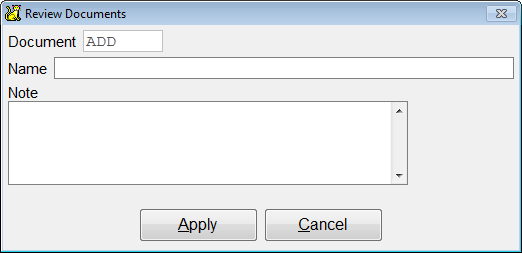
Enter the relevant details and pick Apply.\
Packing
\
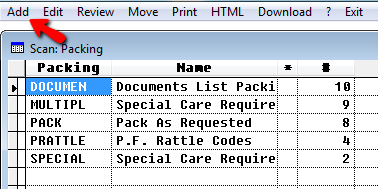
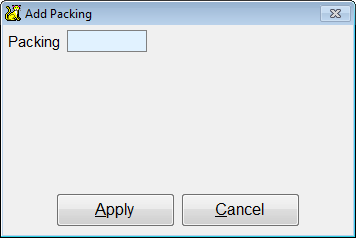
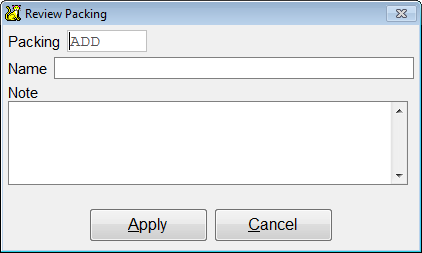
Choose Add to enter a new packing code. Enter the code and pick Apply\
Enter the relevant details and pick Apply.\
Location
\
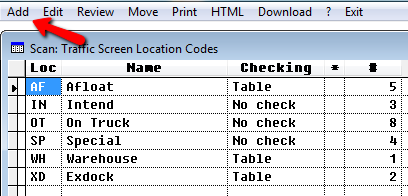
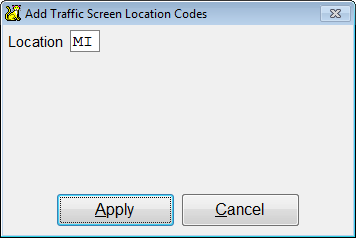
Choose Add to enter a new location code. Enter the code and pick Apply\
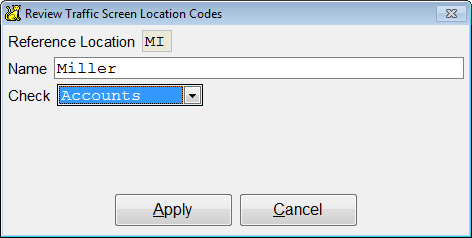
Enter the relevant details and pick Apply.\
FDA Registration
\
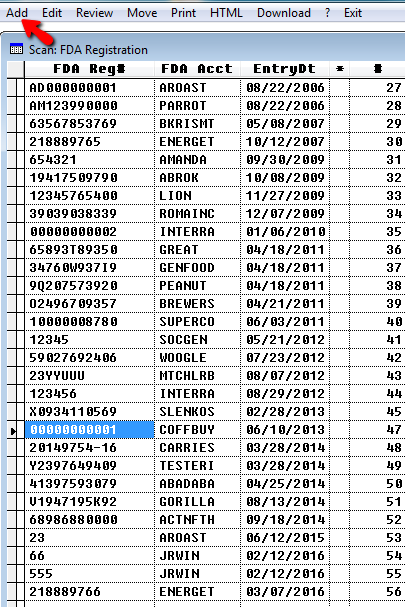
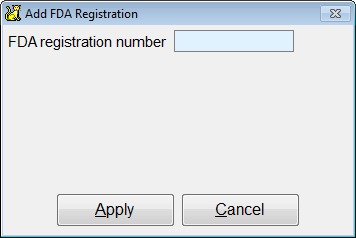
Choose Add to enter a new FDA registration code. Enter the code and pick Apply\
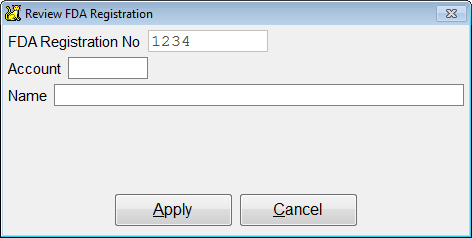
Enter the relevant details and pick Apply.\
Title Holder
\
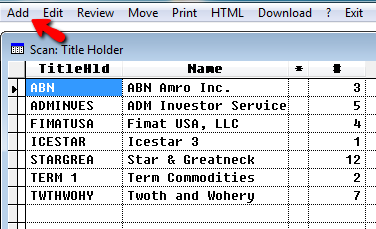
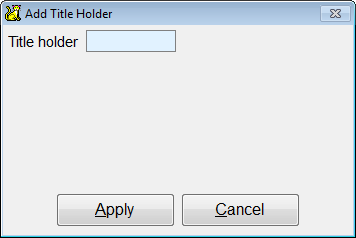
Choose Add to enter a title holder code. Enter the code and pick Apply\
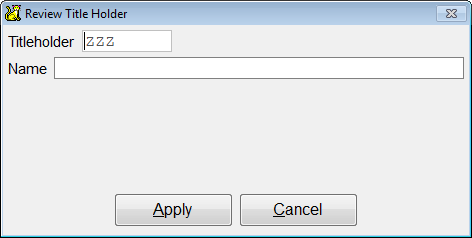
Enter the relevant details and pick Apply.\
Quality
\
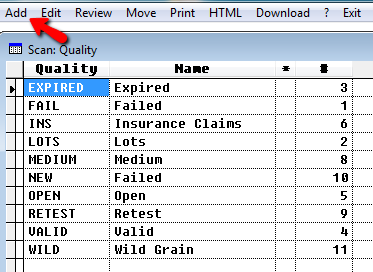
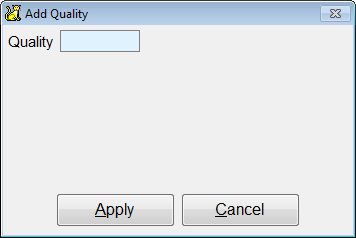
Choose Add to enter a new quality code. Enter the code and pick Apply\
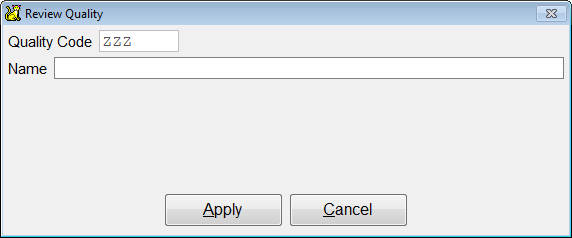
Enter the relevant details and pick Apply.\