Cost-Related Codes
Cost-Related Codes
This is a step-by-step guide to adding other cost-related codes in CATS.\
Quick Guide Steps
- From the main menu, go to Codes and Terms > Cost Codes and choose your code.\
- Select Add from the top menu bar.\
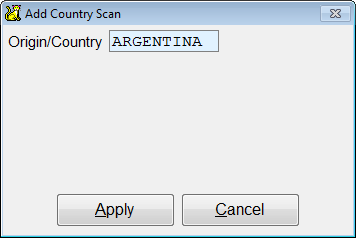
- Enter the new code and press Apply.\
- Enter the relevant details and pick Apply.\
- Press Exit to return to the scan main page.\
Adding a Cost-Related Code
This page details how to enter and modify codes found under the Codes and Terms > Cost Codes. This includes:
- Origin/Country
- Destination
- Carrier
- Cost to Exdock
- Port
- Tax
- Basis
- Marine Insurance
- Region
- Crop Year
It excludes General Cost Code setup, as this has its own wiki page.
Choose the code to be added.
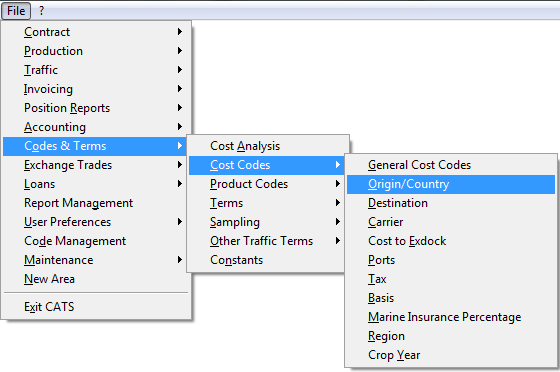
Origin/Country
From here you can view a scan of the codes and their properties. Menu
option include:
Add - Create a new code.
Edit - Change an existing code.
Review - Review a scan.
Print -Print the list of country codes.
HTML-View list in HTML or create a Word, Excel or PDF document.\
Menu options for all other cost-related codes work in the same manner as described above.
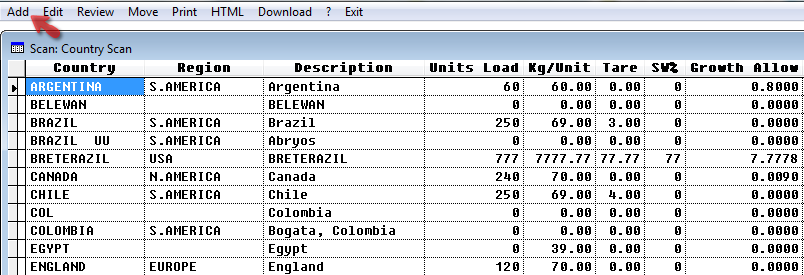
Pick Add to create a new code. Add the country name and press Apply to continue.
Fill in the details of the new origin/country code.
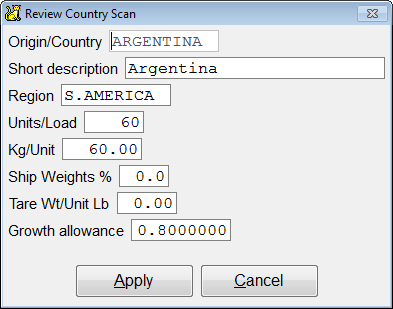
Origin/Country - Add in the country name.
Short description - Additional information in relation to the
origin/country.
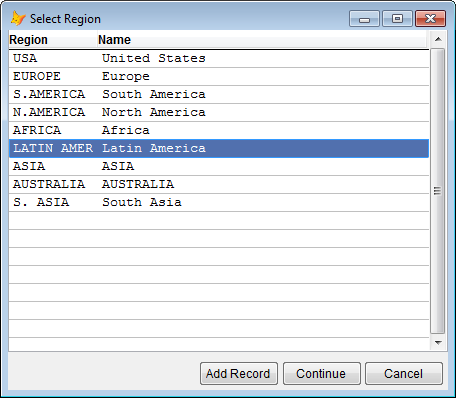
Region - CATS will display regions already in the system. Choose the
region and press Continue.
Units/Load - Enter units
Kg/Unit - Enter Kg/unit
Ship Weights % - Enter %
Tare Wt/Unit Lb - Tare Wt
Growth Allowance - Growth Allowance
Press Apply when finished.
The newly created cost code will show on screen. Press Exit to return to the scan main page.
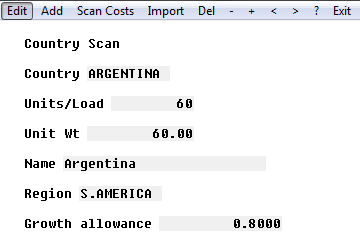
Now, press Save on the top menu bar to save the new code.

Adding all other cost-related codes work in the same manner as the origin/country scan described above.
Destination
Pick Add to create a new code.
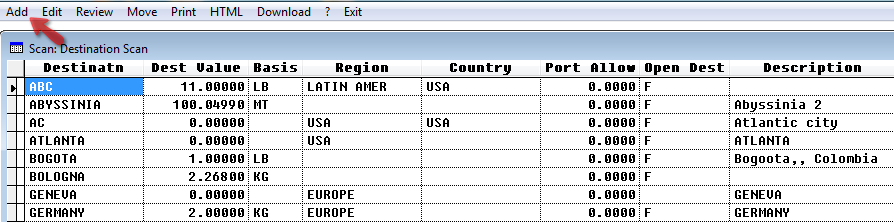
Add the destination name and press Apply to continue.
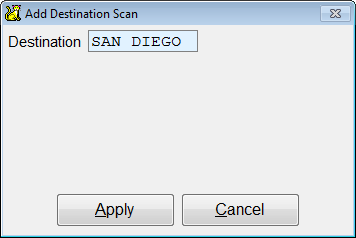
Fill in the details of the new code.
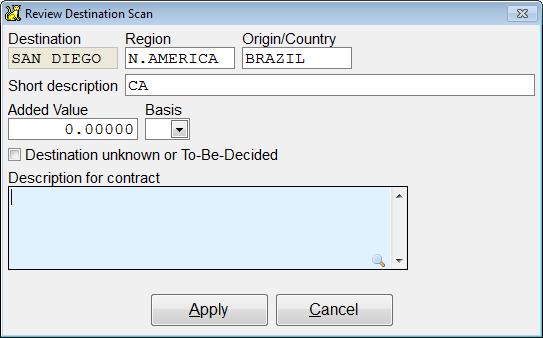
Destination - This should show the destination name that was
entered.
Region - Choose the region.
Origin Country - Enter the origin/country.
Short Description - Short description.
Added Value - Added value.
Basis - Lb, KG, MT
Description for contract - Add a description for the contract.
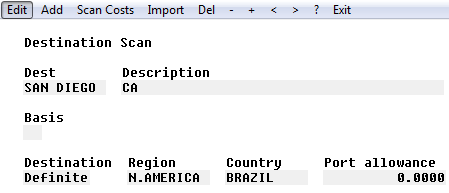
Press Apply when finished. The newly created code will show on
screen. Press Exit to return to the scan main page.
Carrier
Pick Add to create a new code.
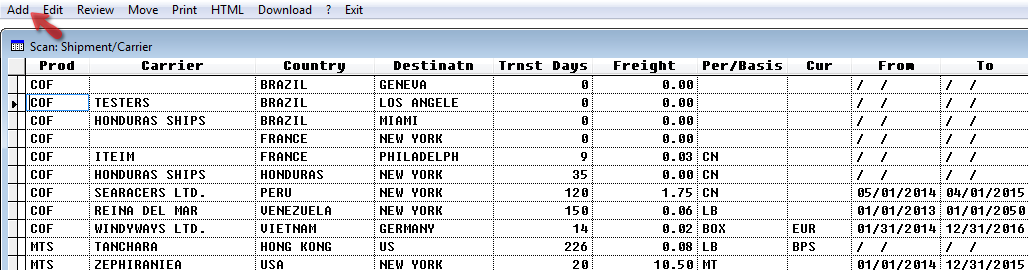
Add the shipment code and press Apply to continue.
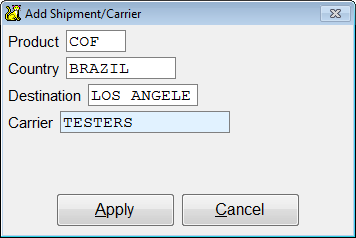
Fill in the details of the new code.
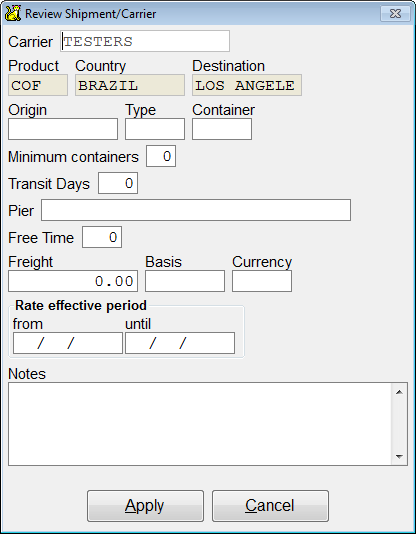
Carrier - Carrier
Product - Product
Country - Country
Destination - Enter destination.
Origin- Enter origin.
Type - Type
Container -
Minimum Containers - Enter the number minimum containers
Transit Days - Enter the transit days.
Pier - Pier name and address.
Free Time -
Freight -
Basis -
Currency -
Rate Effective Period - Enter dates.
Press Apply when finished. The newly created code will show on
screen. Press Exit to return to the scan main page.
Cost to Ex-dock
Pick Add to create a new code.
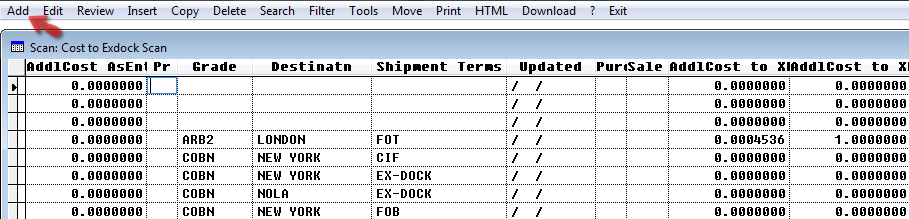
Add the code and press Apply to continue.
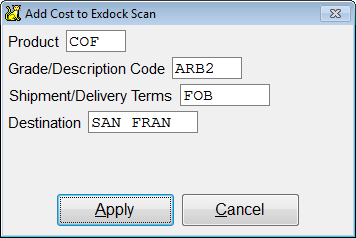
Fill in the details of the new code.
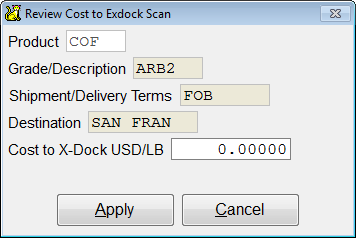
Product -
Grade/ description -
Shipment/Delivery -
Minimum Containers -
Destination -
Cost to Ex-dock -
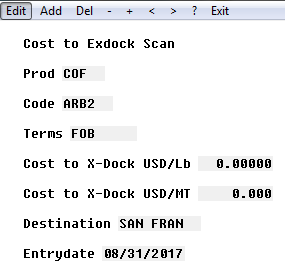
Press Apply when finished. The newly created code will show on
screen. Press Exit to return to the scan main page.
Port
Pick Add to create a new code.
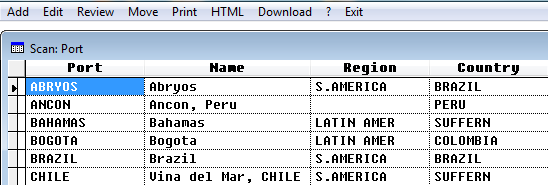
Add the code and press Apply to continue.
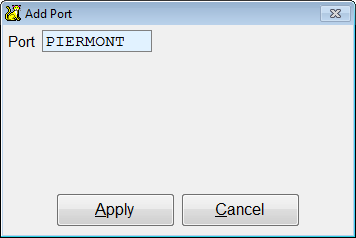
Fill in the details of the new code.
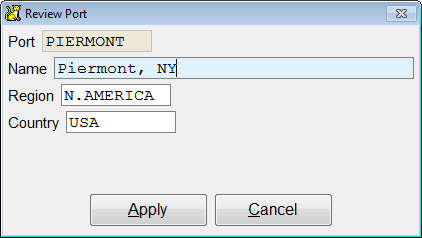
Name - Name of code.
Region - Enter the region.
Country - Enter the country.
Press Apply when finished. The newly created code will show on
screen. Press Exit to return to the scan main page.
Tax
Pick Add to create a new code.
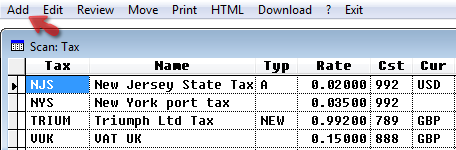
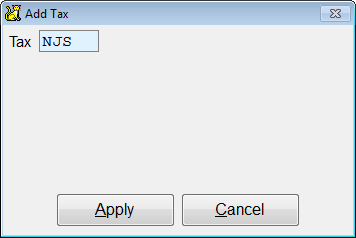
Add the code and press Apply to continue.
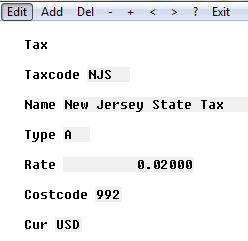
Fill in the details of the new code.
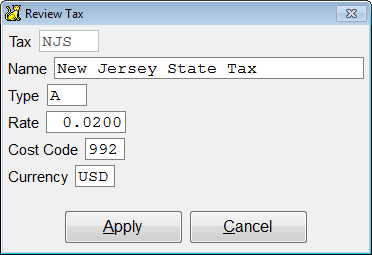
Name - Name of code.
Type - Code type.
Rate -
Cost Code -
Currency -
Press Apply when finished. The newly created code will show on
screen. Press Exit to return to the scan main page.
Basis
Pick Add to create a new code.
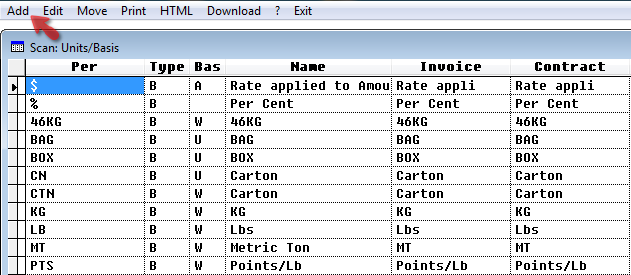
Add the code and press Apply to continue.
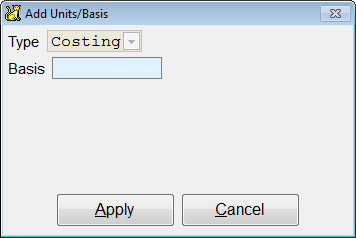
Fill in the details of the new code. Press Apply when finished. The newly created code will show on screen. Press Exit to return to the scan main page.
Region
Pick Add to create a new code.
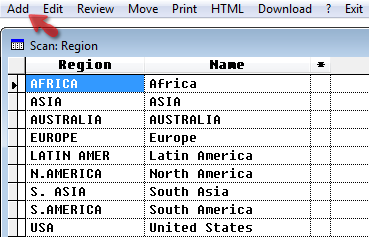
Add the code and press Apply to continue.
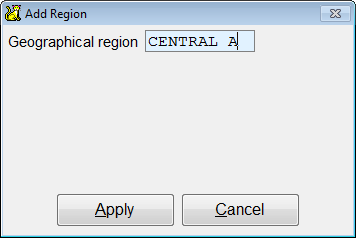
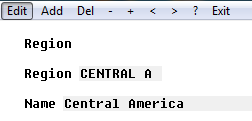
Fill in the details of the new code.
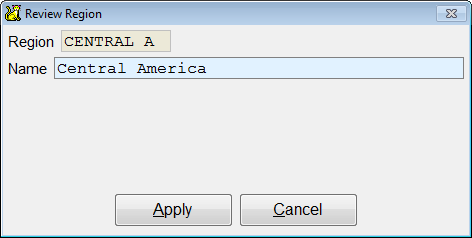
Press Apply when finished. The newly created code will show on screen. Press Exit to return to the scan main page.