Envelope Printing
Envelope Printing
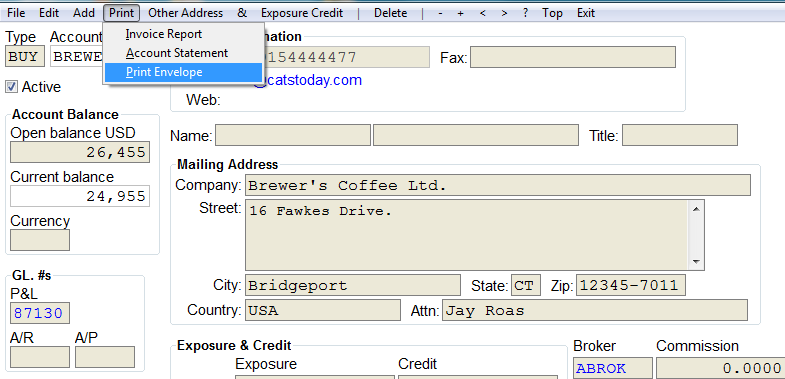
Use the review account option to edit an account and to print
statements, invoices and envelopes. Go to Accounting > Acct:Name
and Address > Review Account. Choose your account code and press
OK. Once in the account review, go to Print > Print Envelope on
the top menu bar.
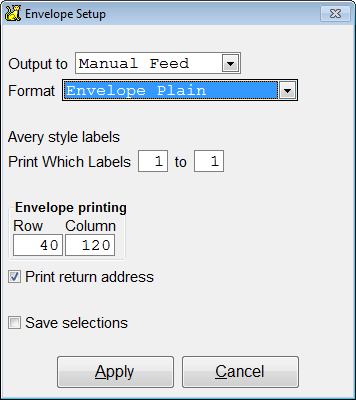
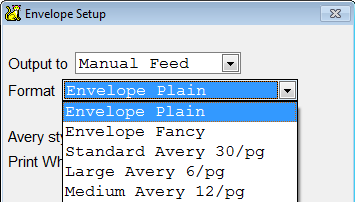
Choose your options, to set up the envelope to print.
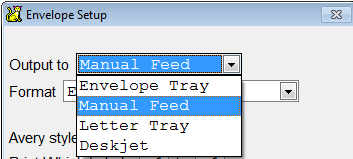
- Choose the output:\
-Envelope Tray
-Manual Feed
-Letter Tray
-Deskjet\
- Choose the format:\
-Envelope Plain
-Envelope Fancy
-Standard Avery 30pg
-Large Avery 6pg -Medium Avery 12pg\
-
Choose the Avery Style Labels - Print Which Labels.
-
Choose Envelope Printing - Rows and Columns.
To print a return address on the envelope check the box Print Return Address. To Save the selections for future envelope printing, check the box Save Selections. Press Apply to continue. Choose Printer to print the envelope. Press Exit to cancel the envelope printing.

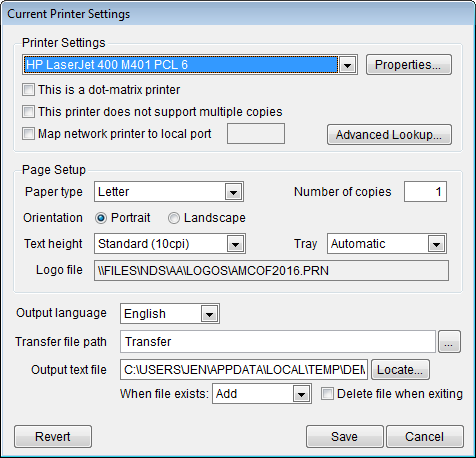
If you need to change your printer options, go to Printer Setup. Press Save to save your printer setup.