Bank Transfers
Bank Transfers
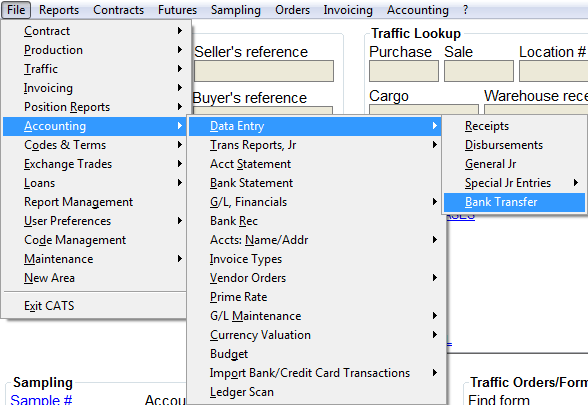
Use a bank transfer to transfer money from one bank account to another. Go to Accounting > Data Entry > Bank Transfer.
Menu Options

- Transactions - Use this option to add another transaction.
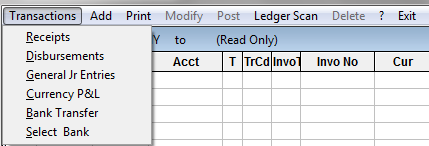
- Add - Add a bank transfer (see below).
- Print - Print the transaction.
- Modify - Modify the transaction.
- Post - Post the transaction.
- Ledger Scan - The ledger scan shows all invoices and transaction history for the current financial year.
- Delete - Delete a transaction.
- Exit - Press Exit to return to the home screen.
Add Bank Transfer
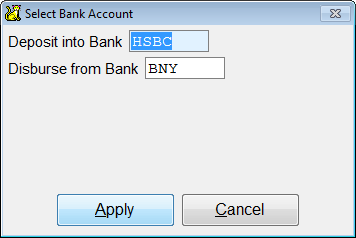
Select Add to add a bank transfer. Select the bank account for the deposit and disbursement. Select Apply to continue.
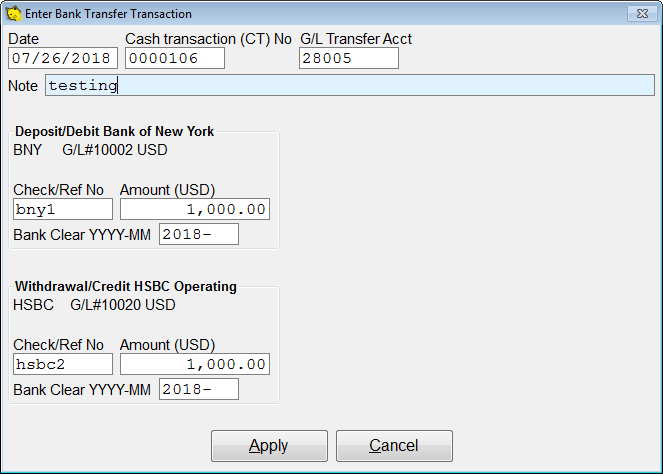
Enter the bank transfer transaction information. Date, Cash transaction No, and G/L Transfer Acct, will auto-fill based on the bank info you entered. Enter Check/Ref No and Amount for both the deposit and withdrawal. Press Apply to continue.
Next, you will see details of the transaction.

- This is the bank deposit summary. For bank transfers, it starts at zero.
- The final number received in bank account.
- The transfer account (negative).
- Funds coming out of the 1st bank.
- The transfer account (positive).
Press Exit to return to the home screen.